






















Digital boundaries are the rules you set so technology serves your goals—not the other way around. In practice, that means deciding what can reach you, when, and how long you’ll spend in attention-grabbing apps. Below you’ll find 12 concrete strategies to manage notifications and set sensible social media limits without missing what matters. Quick definition: Digital boundaries are personal policies that control device interruptions and the time and attention you allocate to online platforms. In short, they reduce noise so you can focus, rest, and be present.
Fast start, if you want a one-minute setup: (1) Turn on Focus/Do Not Disturb with exceptions for VIP people, (2) batch non-urgent notifications, (3) set 30–60 min/day app limits for social media, (4) make your home screen boring (no badges), and (5) schedule phone-free windows before bed.
Light disclaimer: This guide is educational and general in nature. It isn’t medical, legal, or mental-health advice.
1. Batch non-urgent notifications instead of letting them drip all day
Batching delivers notifications in scheduled bursts so you’re not constantly context-switching. For most people, this is the single highest-leverage change because it lowers interruptions without burning bridges. A randomized trial found bundling alerts about three times a day reduced stress and improved well-being, while turning everything off entirely increased anxiety for some participants due to fear of missing out. In other words, batching strikes a practical balance between responsiveness and focus. On iPhone, Scheduled Summary lets you pick times to receive non-urgent alerts; Android users can rely on app-level controls and Digital Wellbeing. Start with two or three delivery windows (e.g., 11:30, 3:30, 7:30), then adjust to taste. The goal is fewer “pings” and more intentional check-ins.
1.1 How to do it
- iPhone: Settings → Notifications → Scheduled Summary → choose apps + times.
- Android: Settings → Notifications (per-app) + Digital Wellbeing; many apps offer digest or priority only options.
- Pick 2–3 windows per day; include one near end-of-day to avoid bedtime catch-up.
1.2 Numbers & guardrails
- Start with 3 digests/day; if anxiety rises, add a fourth window. Evidence suggests batching > total silence for most people.
- Reserve real-time alerts for 5–10 truly critical apps or people.
Bottom line: Batch by default; reserve real-time for emergencies. Your brain will thank you.
2. Use Focus/Do Not Disturb modes that match your contexts (Work, Personal, Sleep)
Contextual Focus modes let you run different rules at work, at home, and during sleep. When configured well, your phone becomes “smartly quiet”: only priority people and apps break through. On iOS, Focus can auto-activate by schedule, location, or app, and sync across Apple devices. On Android, Bedtime mode, Do Not Disturb, and Focus mode help you silence noise and gray out distractions. Treat these as profiles you switch between rather than a single on/off switch.
2.1 Tools & examples
- Work Focus: Allow calendar, calls from colleagues, collaboration tools; block social feeds. Auto-enable 9–5 on weekdays.
- Personal Focus: Allow family, ride-hailing, banking; mute work apps.
- Sleep/Bedtime: Silence all but VIP contacts; use grayscale to reduce late-night scrolling.
2.2 Mini checklist
- Pick allowed people and allowed apps per Focus.
- Turn on Share Across Devices (Apple) to keep rules consistent.
- Set location/schedule triggers so the right profile activates automatically.
Bottom line: Tie your availability to your context. The right Focus at the right time prevents most interruptions.
3. Put time boxes on social media (and actually enforce them)
Set daily app limits for social apps (e.g., 30–60 minutes total) and block extensions without a passcode. iOS Screen Time and Android App Timers make this simple and visible. Limits work best when paired with batching and Focus modes; you’ll get fewer reasons to open the apps, and when you do, the clock is running. Review the weekly report and adjust limits by ±10 minutes based on how often you hit them. Keep a small allowance for messaging apps if that’s your primary social channel.
3.1 How to do it (native tools)
- iPhone/iPad: Settings → Screen Time → App Limits → Social or individual apps → set minutes + Block at End.
- Android: Settings → Digital Wellbeing → Dashboard → set App timers for social apps.
3.2 Numbers & guardrails
- Start with 45–60 min/day total for social; tighten if you routinely exhaust time early.
- Add a weekend buffer (+15–30 min) if social is how you plan in-person time.
Bottom line: Make time visible and finite. If it matters, you’ll make it fit; if not, it fades.
4. Make your home screen boring on purpose
Your home screen sets your default behavior. A minimal, low-stimulation layout reduces mindless taps. Move social apps to a secondary screen or a folder named “Later.” Turn off badges on everything that isn’t critical so you’re not lured by red dots. Keep only 6–8 essentials on page one (camera, messages from VIPs, maps, payments, calendar). Consider grayscale via Bedtime mode or accessibility shortcuts to make feeds less visually sticky. On iPhone, Scheduled Summary and Focus will also keep that lock screen calm.
4.1 Mini checklist
- Page one = tools; Page two = temptations.
- Disable badges for non-critical apps.
- Add Search habit: swipe down and type app name instead of browsing.
4.2 Why it works
- You remove cues that trigger reflexive checking.
- Grayscale and fewer badges reduce the “slot-machine” feel of feeds.
Bottom line: Default design drives default behavior. Make your defaults dull.
5. Tame feeds: prefer “Following” and lists over infinite scroll
Algorithmic “For You” feeds are engineered for maximum engagement, not your goals. Where possible, switch to Following/Chronological views, curate lists (e.g., close friends, professional sources), or use RSS to pull only what you choose. Expect platforms to resist this—sticky design features like infinite scroll, intermittent rewards, and red notification cues are built to keep you there. Counter them with timers, batches, and friction (e.g., remove the app from your dock).
5.1 How to do it
- On major platforms, look for Following, Most recent, or Lists options.
- Replace idle browsing with saved searches or creator lists.
5.2 Numbers & guardrails
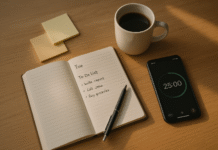
- Limit each session to 5–10 minutes; use a timer.
- Maintain two lists: Learn (career/skills) and People (relationships). Rebuild feeds around those.
Bottom line: You decide what’s “in your diet.” Don’t let algorithms serve dessert for dinner.
6. Set messaging rules: mute, mentions-only, and quiet group chats
Most overload comes from group threads. Mute non-urgent groups by default; allow mentions to surface when someone needs you. Archive busy threads after you’ve contributed to reduce reopen loops. For work, separate “FYI” and “Action” channels so only the latter can bypass your Focus. If you’re anxious about missing family emergencies, add VIP exceptions for key contacts; those alerts can bypass Do Not Disturb so you can silence the rest with confidence.
6.1 Mini checklist
- Mute large groups; mentions-only for semi-urgent spaces.
- Pin up to five high-value threads; archive others.
- VIP your inner circle; block unknown callers/messages when needed.
6.2 Small example
- One reader cut group-chat noise by 80% by setting mentions-only in three work channels and muting two extended-family groups during weekdays; messages still appeared, but alerts stopped hijacking meetings.
Bottom line: Let people reach you when it matters—without letting everyone reach you all the time.
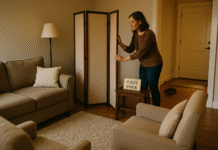
7. Schedule “default offline” windows every day (and one weekly)
Recovery is a feature, not a bug. Choose two daily 30–60 minute phone-free blocks (commute, deep work, meals) and one weekly half-day (a “digital sabbath”). Use Focus to auto-enable, and store the phone out of reach. If your job requires availability, create a back-up route (e.g., desk phone or a colleague) during your deepest focus block so you’re not checking “just in case.” Over time, these recurring windows reset your baseline attention and lower the urge to doomscroll.
7.1 How to do it
- Add calendar events labeled “Offline — by design.”
- Tie Focus to location (e.g., office) or time (11:00–12:00 daily).
7.2 Numbers & guardrails
- Aim for 90–120 minutes/day offline across blocks.
- Protect one weekly half-day (mornings often work best).
Bottom line: Put presence on your calendar. Consistency beats intensity.
8. Protect sleep: use Bedtime/Sleep Focus and remove devices from the bedroom
Screens near bedtime can delay sleep by suppressing melatonin and keeping your brain “on.” A practical, research-backed boundary: turn off or avoid screens for at least 30–60 minutes before bed, use Bedtime mode to silence alerts and gray the screen, and keep devices out of the bedroom when possible. Public-health guidance supports device-free wind-downs, and many sleep experts recommend a tech-curfew window. If you must be reachable at night, whitelist VIP contacts inside Sleep Focus and move the phone across the room.
8.1 How to do it
- Android: Digital Wellbeing → Bedtime mode (grayscale + Do Not Disturb).
- iPhone: Focus → Sleep with only VIPs allowed; schedule nightly.
8.2 Numbers & guardrails
- 30–60 min screen-free buffer before sleep (longer if you’re sensitive).
- Move chargers outside the bedroom; use an analog alarm.
Bottom line: Sleep is a multiplier. Quiet the phone, and your brain follows.
9. Audit email and app notifications quarterly
Attention debt creeps. Every quarter, prune alerts back to essentials. Keep: direct messages, transportation, banking, two-factor codes, calendar, and VIPs. Batch or disable everything else. On iPhone, Scheduled Summary is ideal for newsletters and shopping apps; on Android, use per-app notification channels and “silent” categories. Measurement matters: expect performance and perceived strain to improve when you cut interruption frequency.
9.1 Mini checklist
- Unsubscribe from 5+ newsletters you never read.
- Convert “promotions/marketing” to digest or silent.
- Keep calendar + reminders real-time.
9.2 Why it matters
- Fewer interruptions → better performance and lower strain at work in experimental settings.
Bottom line: Your notification diet needs routine clean-ups—just like your closet.
10. Separate work and personal with profiles and device boundaries
Blurring work/personal increases “telepressure” and makes true downtime rare. Use Android Work Profile or a separate browser profile to silo accounts and notifications. For sensitive roles, consider a secondary device for on-call shifts so the rest of your life stays quiet. During personal time, let only family and essentials bypass Focus; during work, mute personal socials entirely. Android highlights Work Profile as a way to keep business and personal data distinct and to quiet work apps after hours.
10.1 How to do it
- Android: Settings → Work profile (if provided by employer) → pause after hours.
- All: Create separate browser profiles; turn off mail fetch for the “off” profile.
10.2 Numbers & guardrails
- Define office hours in your status (e.g., 9–5 local).
- Allow one escalation path after hours (e.g., phone call, not chat).
Bottom line: Boundaries work when tools reinforce them. Profiles make “off” real.
11. Reconfigure app-level notification categories (and badges) with intent
Most apps offer multiple notification “channels” (e.g., direct mentions vs. likes). Keep actionable channels and silence engagement bait. Turn off sound/vibration for anything non-urgent; disable badges for social entirely. On iPhone, combine this with Scheduled Summary; on Android, open each app’s notification settings and flip everything that isn’t time-sensitive to “silent.” The result is fewer reflex checks and more signal when something truly needs you.
11.1 Mini checklist
- Keep: direct mentions, DMs, security, rides, deliveries.
- Batch/silent: likes, follows, suggestions, “X posted”.
- Disable badges for all but banking/calendar.
11.2 Small example
- After trimming categories in three social apps, expect daily alerts to drop from hundreds to dozens; many users report no loss in responsiveness to real requests.
Bottom line: If a notification never changes your behavior, you don’t need to see it.
12. Review weekly data and iterate: reports, blockers, and experiments
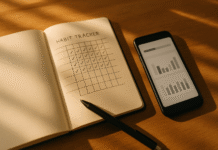
Boundaries stick when you measure and adjust. Every week, check Screen Time/Digital Wellbeing for top apps, pickups, and notifications, then tweak Focus rules or limits. Consider adding soft blockers (e.g., Freedom, Opal, Forest) to add friction during deep-work hours. Keep an experiment log: try a two-week “Following-only” feed, or cap social to 45 minutes and note mood and output. Notably, one 2025 study found disabling notifications for a week didn’t significantly change phone checking or screen time—so focus on system design (batching, limits, feed curation) rather than sheer willpower.
12.1 Mini checklist
- Every Sunday: 10-minute review of reports; adjust 1–2 settings.
- Trial a single change for 14 days; log results.
- Automate wins (schedule Focus, timers, summaries).
12.2 Why it works
- Small, consistent adjustments beat one-off resets; you’re designing an environment where the easy thing is the right thing.
Bottom line: Treat your attention like a product—ship improvements weekly.
FAQs
1) What exactly are “digital boundaries”?
They’re personal rules for how, when, and why technology can reach you. Practically, that includes which notifications are allowed, how often you receive them (batching vs. real-time), how long you spend in sticky apps, and device-free times or places. Think of them as guardrails that keep you responsive to what matters and unavailable to what doesn’t.
2) Will turning off all notifications fix my focus problems?
Not always. Some evidence suggests that totally disabling notifications can raise anxiety for certain people due to fear of missing out, while batching reduces stress and improves well-being. A 2019 study supports batching, and a 2025 study found disabling didn’t change behavior much—design beats brute force.
3) How much social media time is “healthy”?
There isn’t one number for everyone. A pragmatic range for many adults is 30–60 minutes/day across platforms, with a bit more on weekends. Use app limits to enforce the ceiling and adjust based on your goals and mood over a two-week trial. Screen Time/Digital Wellbeing reports make the feedback loop easy.
4) How do I stay reachable for emergencies while staying offline?
Use Focus/Do Not Disturb with allowed contacts (family, caregivers, critical work roles). On iPhone, Focus lets VIPs break through; on Android, set starred contacts to ring even in Do Not Disturb or Sleep mode. Keep those lists short.
5) What if my job expects instant replies?
Clarify response-time norms with your team and route true emergencies via calls rather than chat. During deep work, enable a Work Focus that allows only mission-critical apps and DMs/mentions; everything else can batch. This approach supports performance and reduces strain from interruptions.
6) I’m worried about sleep—do screens really matter at night?
Yes, for many people. Guidance from public-health sources recommends turning off devices 30+ minutes before bedtime and using features like Bedtime/Sleep Focus to silence alerts and dim screens. Your mileage may vary, but a short tech-curfew helps most sleepers.
7) What’s the fastest single change I can make today?
Turn on a Work and Sleep Focus, pick VIP exceptions, and move social apps off your home screen. Then add a Scheduled Summary (iPhone) or per-app silent channels (Android) to batch the rest. You’ll feel the difference within 24 hours.
8) How can I make feeds less addictive without deleting apps?
Switch to Following/Chronological views and curate lists. Add timers, remove badges, and consider grayscale in the evening. These counter the persuasive design behind infinite scroll and intermittent rewards. Center for Humane Technology
9) Does everyone use social media this much, or is it just me?
You’re not alone. Surveys show a large majority of adults use major platforms regularly, and over half get news from social media at least sometimes. That’s why proactive boundaries matter—they help you use platforms on your terms.
10) How do I keep work and personal separate on the same phone?
If you’re on Android, ask IT about Work Profile; pausing it after hours silences work apps while keeping your personal life intact. Otherwise, use separate browser profiles and Focus modes to route alerts correctly.
Conclusion
Digital boundaries aren’t about perfection—they’re about designing an environment where your default choices line up with your values. When you batch non-urgent alerts, tie availability to context with Focus modes, time-box social media, and make your home screen intentionally boring, your attention stops getting yanked around. Add phone-free windows and a bedtime tech-curfew, and your sleep and mood usually follow. The throughline is clarity: who gets through, when, and why. Review your Screen Time/Digital Wellbeing report weekly, adjust a couple of settings, and let the system do the heavy lifting. Over a month, you’ll reclaim hours—and more importantly, peace of mind.
Your next step: pick two strategies from this list (batching + one Focus), set them up now, and enjoy a quieter day.
References
- Use Screen Time on your iPhone or iPad, Apple Support, May 13, 2025 — https://support.apple.com/en-us/108806
- Set schedules with Screen Time on iPhone (App Limits), Apple Support, n.d. — https://support.apple.com/guide/iphone/set-schedules-with-screen-time-iphb0c7313c9/ios
- Change the frequency of notifications (Scheduled Summary), Apple Support, n.d. — https://support.apple.com/guide/iphone/change-notification-settings-iph7c3d96bab/ios
- Set up a Focus on iPhone, Apple Support, n.d. — https://support.apple.com/guide/iphone/set-up-a-focus-iphd6288a67f/ios
- Use notifications on your iPhone or iPad (Focus overview), Apple Support, Apr 8, 2025 — https://support.apple.com/en-us/108781
- Manage how you spend time on your Android phone with Digital Wellbeing, Google Support, n.d. — https://support.google.com/android/answer/9346420
- Digital Wellbeing (Bedtime mode, Work Profile), Android.com, n.d. — https://www.android.com/digital-wellbeing/
- Fitz N. et al., “Batching smartphone notifications can improve well-being,” Computers in Human Behavior, Dec 2019 — https://www.sciencedirect.com/science/article/abs/pii/S0747563219302596
- Ohly S. et al., “Effects of task interruptions caused by notifications from instant messaging on strain and performance,” Human Factors and Ergonomics in Manufacturing & Service Industries, 2023 — https://pmc.ncbi.nlm.nih.gov/articles/PMC10244611/
- Dekker C.A. et al., “Beyond the Buzz: Investigating the Effects of a Notification-Disabling Intervention,” Media Psychology, 2025 — https://www.tandfonline.com/doi/full/10.1080/15213269.2024.2334025
- Americans’ Social Media Use, Pew Research Center, Jan 31, 2024 — https://www.pewresearch.org/internet/2024/01/31/americans-social-media-use/
- Social Media and News Fact Sheet, Pew Research Center, Sep 17, 2024 — https://www.pewresearch.org/journalism/fact-sheet/social-media-and-news-fact-sheet/
- About Sleep: What to Do, Centers for Disease Control and Prevention, May 15, 2024 — https://www.cdc.gov/sleep/about/index.html
- Blue Light: What It Is and How It Affects Sleep, Sleep Foundation, Jul 11, 2025 — https://www.sleepfoundation.org/bedroom-environment/blue-light