























If you want more deep work with fewer pings, the right stack of digital tools for focus can do the heavy lifting. This guide shows how to combine timers, calendars, system modes, and blockers so your attention is protected by default—not willpower. In short: use built-in Focus/Do Not Disturb modes, schedule your time like meetings, run work in intervals, and route notifications into batches. Digital tools for focus are operating-system and app features that enforce attention rules (silence, limits, blocks) and make time visible (blocks, timers, goals). Used together, they reduce context switching and decision fatigue. Quick start: (1) schedule two daily focus blocks, (2) enable Focus/DND with a strict whitelist, (3) run a 50/10 or 25/5 timer, (4) block your top three distracting sites/apps, and (5) review weekly activity to tune settings.
1. Turn On System Focus/Do Not Disturb (Every Device, Same Rules)
Start by switching on system-level Focus or Do Not Disturb (DND) across phone, laptop, and browser; it’s the fastest way to stop drive-by interruptions. On iPhone and iPad, Focus lets you silence alerts while allowing VIP calls and essential apps; on Android, Modes & DND provide custom schedules and exceptions; on Windows/macOS environments, pair OS-level focus with your communication tools. The goal is simple: define “who and what can break through,” then schedule it to auto-activate during work blocks. Research shows notifications impair performance even when you don’t open them; silencing them during deep work is not optional—it’s foundational. As of August 2025, Focus/Mode settings include schedules, contact/app exceptions, and lock-screen behavior, so you can be reachable for true emergencies without opening the floodgates.
1.1 Why it matters
- Phone alerts alone reduce sustained attention, similar to actively using the phone. That’s the cost of a buzz or banner.
- Interruptions increase stress and time pressure; people often work faster to compensate—but at a cost.
1.2 How to do it (5-minute setup)
- iOS/iPadOS: Settings → Focus → add Work; Allowed People/Apps: limit to 1–2 contacts and essential tools; Schedule by time and/or calendar.
- Android: Settings → Modes & Routines / Do Not Disturb → set a Work mode, add exceptions, and schedule weekdays.
- PC (Teams/Outlook): enroll in Viva Insights Focus plan to auto-mute Teams during focus.
Synthesis: System Focus/DND is your master switch—set it once, sync it everywhere, and let software—not self-control—guard your attention.
2. Work in Intervals with Timers (Pomodoro & Focus Sessions)
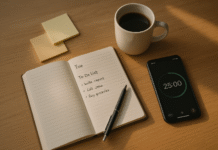
Intervals convert big tasks into sprints with planned recovery. Use a 25/5 Pomodoro (25 minutes on, 5 off) or 50/10 for deeper strides; Windows’ Focus sessions and apps like RescueTime let you launch a session that times work, schedules breaks, and (optionally) blocks distractors. Short, deliberate breaks counter the natural vigilance drop that hits during long tasks, keeping your goals “fresh” so accuracy and consistency improve. Crucially, the timer externalizes pace, so you stop negotiating with yourself every few minutes. Use intervals to start scary tasks, power through grinds, or protect cognitive stamina late in the day.
2.1 Numbers & guardrails
- Evidence: brief, rare breaks preempt the vigilance decrement—your attention rebounds when goals are re-activated.
- Default Focus Session lengths typically range 15–60 minutes; pick one pattern and stick to it for a week before tweaking.
2.2 Mini-checklist
- Choose a single preset (25/5 or 50/10).
- Start a Focus Session tied to your task name.
- Stand up during breaks; avoid “micro-scrolls.”
- Log one sentence of progress per session; resume fast.
Synthesis: A visible clock plus planned relief beats white-knuckling; intervals keep intensity without burnout.
3. Time-Block Your Day with Calendar “Focus Time”
Treat deep work like a meeting: put it on the calendar. Google Calendar’s Focus time creates headphone-icon blocks that auto-decline meetings and can mute chat; Microsoft’s Viva Insights can schedule daily focus time and silence Teams during those windows. Two 60–120 minute blocks (morning/afternoon) are ideal for most knowledge work. Make blocks recurring, name them by outcome (“Write results section,” not “Deep work”), and align your system Focus/DND to these times so your phone and chat agree with your calendar. As of August 2025, both Google and Microsoft provide native tools for recurring focus blocks.
3.1 How to do it
- Google Calendar: Create → Focus time → check Automatically decline meetings; repeat Mon–Fri. (Workspace accounts required.)
- Microsoft: In Outlook/Viva, start a daily focus plan to book and protect focus slots.
3.2 Mini-case
- A PM with five daily stand-ups blocked 09:30–11:00 and 14:30–16:00 as focus time; Teams auto-muted and meetings were declined unless marked “urgent.” After three weeks, code review turnarounds improved and late email triage dropped.
Synthesis: If it lives on your calendar, it lives in real life—focus time makes deep work the default, not the leftover.
4. Block Distracting Sites & Apps (Use “Locked” Modes)
Website/app blockers create hard edges around your attention. Tools like Freedom and Cold Turkey can block social feeds, news, and even desktop apps on schedules or during timers—some offer “locked” modes you can’t disable until the block ends. Pair blocks with your calendar focus time to prevent “just-a-peek” loops. Begin with your top 3 distraction sources, then expand if needed. Blockers are especially helpful when your work happens in a browser tab near temptation. Use custom lists for work vs. personal contexts and enable “break glass” exceptions only for true emergencies. ResearchGate
4.1 Setup tips
- Create Workdays schedule (e.g., 09:30–12:00, 14:00–17:30).
- Enable Locked Mode for critical blocks.
- Sync across devices if the tool supports it.
- Keep a one-tap unblock note for your manager in case of urgent access.
4.2 Evidence snapshot
- Field studies show blocking online distractions can raise self-rated focus and productivity, with bigger gains for people who feel less control at work.
Synthesis: Blockers remove temptation architecture; with locked rules you get consistency without constant self-policing.
5. Batch Notifications with Digests & Priority Filters
Not every ping is equal. Route low-stakes alerts into scheduled summaries/digests while letting VIPs through. On iPhone, Scheduled Summary delivers non-urgent notifications in batches; on Android, use Modes with limited exceptions. For email, Gmail’s Priority Inbox moves lower-value messages out of sight so you can triage the important few first. Set summaries twice daily (e.g., 11:30 and 16:30), promote VIPs, demote subscriptions, and silence badges. This preserves reachability without letting chatter break flow.
5.1 Steps (90 minutes to transform your day)
- iOS: Settings → Notifications → Scheduled Summary; add apps that can wait.
- Android: Create a Work Mode with strict app exceptions; schedule weekdays.
- Gmail: Switch to Priority Inbox so “Important and Unread” is your default view.
5.2 Guardrails
- 2–3 summaries per day; more defeats the point.
- VIP list ≤5 people/services.
- Turn off numeric badges for all optional apps.
Synthesis: Batching flips the script—notifications arrive when you’re ready, not when they’re loudest.
6. Run Your Day from a Task View (Filters & Kanban)
A task manager turns chaos into a single Today/Next list. Use filters (Todoist) or boards (Trello) to spotlight only what matters now. Filters can show, for example, “today AND high-priority AND work label,” while Kanban boards visualize flow: To Do → Doing → Done. The tool matters less than a repeatable view that hides everything else during focus blocks. Add task metadata (priority, labels, due date), then build a filter or board that your Focus time will feed. This prevents context switching to email to “figure out what’s next.”
6.1 How to do it
- Todoist filter:
today & p1 | p2 & @work→ save as Today (Work) and pin it. - Trello board: Lists for Today, Doing, Blocked, Done; move only 1–3 cards into Doing at a time.
6.2 Mini-checklist
- One Today view; one Inbox; weekly review.
- Every task has a verb + object (“Draft Q3 summary”).
- Limit WIP to 1–3 tasks.
Synthesis: A curated task view feeds your focus blocks with the right work in the right order—no scavenger hunts.
7. Read Without Distractions (Reader Modes & Save-for-Later)
When you need to absorb content, switch to a Reader view that strips ads, pop-ups, and sidebars. Safari’s Reader and Microsoft Edge’s Immersive Reader turn cluttered pages into clean text with adjustable typography. Combine this with a read-later queue and a timer to prevent “tab-sprawl.” Reading in a minimal UI reduces reload-triggered distraction and helps you track progress (one article per interval). For research or legal docs, reader modes also improve accessibility, letting you resize fonts and spacing for comfort.
7.1 Steps
- Safari: Tap Reader (AA icon) → set font/size → focus.
- Edge: Enable Immersive Reader (book icon) → adjust line focus if needed.
7.2 Tips
- Pair Reader with a 25-minute timer.
- Queue articles; ban live feeds during focus blocks.
- Copy one insight into your notes per article.
Synthesis: Reader modes plus a clock turn information grazing into intentional study.
8. Cap App Use with Screen-Time & Digital Wellbeing Limits
Use app timers and downtime to put ceilings on social and news apps during work hours. On iOS, Screen Time lets you set daily limits, see most-notifying apps, and enforce Downtime; Android’s Digital Wellbeing and DND/Modes offer similar controls with schedules and exceptions. Limits are guardrails, not punishments—they force a choice: spend your quota now, or save it for later. Review weekly reports to tighten or relax limits. As of May–August 2025, Screen Time includes robust usage and notification reports across devices signed into your Apple ID.
8.1 How to do it
- iOS: Settings → Screen Time → App Limits (choose categories like Social) → Downtime overnight.
- Android: Set Modes and limit apps under Stay focused/Restrict app usage (model-specific).
8.2 Numbers & guardrails
- Start with 30–60 min/day caps for top distractors.
- Use a passcode so limits stick.
Synthesis: Time caps convert “endless scroll” into a budget—you decide where it goes.
9. Measure to Improve (Reports & Focus Analytics)
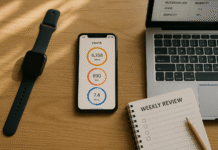
What you measure, you can tune. Screen Time shows weekly totals, pickups, and who pings you most; RescueTime’s Focus Sessions/Focus Zones track session counts and block distractions automatically when ideal windows open. The aim isn’t perfection—it’s feedback. If afternoons are noisy, move the heavy lift to mornings and run a stronger block/Focus mode after lunch. If one chat channel dominates interruptions, tighten its exceptions. Use a simple weekly ritual: review your charts, change one setting, and test for seven days.
9.1 Mini-checklist
- Every Friday: 10-minute review.
- Spot your most-notifying apps and demote them.
- Track sessions completed rather than hours worked.
9.2 Example
- Week 1: 8 sessions, 3 interrupted → Week 2: enabled locked blocks → 10 sessions, 1 interrupted.
Synthesis: Data closes the loop—adjust one lever at a time and let reports prove what works.
10. Automate Focus with Schedules, Locations & Triggers
Automations eliminate “remember to focus.” On iPhone/iPad, Shortcuts → Personal Automation can toggle Focus, start a timer, open your writing doc, and launch a website blocker at 09:30 every weekday—or when you arrive at the office. On Android/Pixel/Samsung, Modes & Routines can enable DND, restrict apps, and change settings based on time, Wi-Fi, or location. Start with simple triggers: time of day for work blocks, location for commutes, and calendar events for meetings. Keep automations transparent and easy to override; the goal is fewer taps to start deep work.
10.1 How to do it
- iOS: Shortcuts → Automation → Time of Day → actions: Set Focus: Work, Start Timer 50 min, Open Doc.
- Android: Settings → Modes & Routines → new routine → triggers: Time or Wi-Fi → actions: Do Not Disturb, Restrict apps.
10.2 Guardrails
- One automation per block; keep names human (“Morning Focus”).
- Add a Stop shortcut/quick tile for emergencies.
Synthesis: When focus starts itself, you’ve already won the first battle.
11. Use Ambient Sound Wisely (Noise ≠ Noise)
For creative or writing tasks, moderate ambient noise (around 70 dB—think busy café) can boost creative cognition compared with very quiet settings; too loud (≈85 dB) hurts. Use soundscapes or brown/white noise during maker work, and silence for analytical precision. Headphones also give a do not disturb social cue. Keep volumes healthy; the point is gentle masking, not sonic immersion. Test pairs: café noise for drafting; rain/white noise for analysis; silence for debugging.
11.1 Numbers & references
- Moderate ~70 dB improved creative task performance in five experiments; 85 dB reduced it.
- If noise distracts or tasks are highly precise, go quieter.
11.2 Mini-checklist
- Two playlists: Creative (café/lofi), Analytical (white/brown noise).
- Volume: comfortable, speech-masking, not isolating.
- Pair with 25/5 timers; switch tracks at breaks.
Synthesis: The right sound is a tool—tune it to the work, not the mood.
12. Build a One-Tap “Focus Stack” (Timer + Focus + Blocker + Task)
Bundle your essentials into a single start routine: enable system Focus/DND, start a 50-minute timer, open today’s task view, and activate your blocker. On Apple devices, a Shortcuts tile can run all four; on Android, a Mode/Routine can do similar. Add a matching calendar Focus time so meetings auto-decline and chat mutes. When the block ends, your routine turns off Focus, stops the timer, and shows a quick log prompt (“What moved?”). This stack removes friction and makes deep work repeatable across mornings, afternoons, and late-day pushes.
12.1 Example stack (weekday 09:30)
- Set Focus: Work (VIPs only) → Open Today filter → Start 50:10 timer → Enable site/app block → Log 1 line at finish.
12.2 Sane defaults
- 2 daily blocks; no evening blocks unless urgent.
- Calendar decline: new and existing meetings during focus.
Synthesis: One button, full ritual—your best work happens when starting is effortless.
FAQs
1) What are “digital tools for focus,” exactly?
They’re built-in OS features and apps that enforce attention rules (Focus/DND, app timers, blockers) or make time visible (calendar blocks, timers). Used together, they silence non-urgent pings, limit tempting apps, and schedule deep-work windows so you protect attention by default. The goal is less context switching and more finished work, not monastic silence. (See iOS Focus, Android Modes, Calendar Focus time.)
2) Are timers like Pomodoro scientifically proven?
There isn’t a single “magic interval,” but research shows brief breaks counter vigilance decline in sustained tasks, helping you maintain performance. Start with 25/5 for activation or 50/10 for deeper work and adjust based on fatigue and task type. Windows Focus Sessions and apps can automate it and block distractions during the work interval.
3) How many focus blocks per day is ideal?
Two is a solid baseline (one morning, one afternoon) with 90–120 minutes each; knowledge workers get diminishing returns beyond ~4 hours of true deep work. Use Calendar Focus time to protect those blocks and auto-decline meetings; measure with weekly reports to refine.
4) Won’t I miss something urgent if DND is on?
Use exceptions: allow calls from favorites, set app-level priority, and let calendar events override focus when necessary. iOS Focus and Android Modes/Routines support contact and app exceptions so you’re reachable for emergencies but shielded from noise.
5) Is it better to block websites or rely on willpower?
Blockers win. Studies show that when online distractions are blocked, people report higher focus and productivity—especially those who feel less control over their work. Pair blockers with Focus/DND and a timer for a strong “no-distraction” perimeter.
6) What about reading and research—how do I avoid tab sprawl?
Use Reader modes (Safari, Edge) to strip clutter, run a 25-minute timer per article, and keep a read-later queue. Capture one insight per article and close the tab. Reader views also improve accessibility and reduce ad-driven distraction.
7) Do notification digests actually help?
Yes. Moving non-urgent notifications into scheduled summaries keeps them from interrupting work; you can still scan them at lunch or day’s end. Combine with Priority Inbox for email so the most important messages surface first.
8) How do I choose between 25/5 and 50/10 intervals?
Pick based on task depth and stamina. Use 25/5 to beat procrastination and for shorter tasks; 50/10 for drafting, analysis, or coding when you can stay in flow longer. If you start skipping breaks, shorten the interval; consistency beats intensity.
9) Can ambient sound really improve focus?
For creative tasks, moderate noise (~70 dB) can increase creative performance versus very quiet or very loud environments. For precision/analytical tasks, quieter is often better. Test both; keep volume at comfortable levels.
10) How do I keep this sustainable long term?
Automate activation (Shortcuts/Routines), review reports weekly, and adjust one lever at a time (e.g., tighten a limit or add a VIP). Over time you’ll converge on a personal Focus stack that starts with one tap and adapts to new roles and seasons. Apple Support
Conclusion
Focus isn’t an accident—it’s a system. When you combine calendar Focus time, a strict Focus/DND profile, interval timers, and blockers, you’re outsourcing self-control to software that never gets tired. Start with two protected blocks a day, run 25/5 or 50/10 timers, and send non-urgent notifications to digests. Add app limits for habitual time-sinks, use Reader modes for clean reading, and review weekly reports to tighten your settings. Then, automate the whole stack so deep work begins with a single tap. Do this and you’ll shift from “trying to focus” to doing focused work—with less stress, fewer context switches, and a predictable cadence of wins.
CTA: Build your one-tap focus stack today—schedule tomorrow’s two blocks, enable Focus/DND, and run your first Focus Session.
References
- Stothart, C., Mitchum, A., & Yehnert, C. (2015). The attentional cost of receiving a cell phone notification. Journal of Experimental Psychology: Human Perception and Performance. PubMed. https://pubmed.ncbi.nlm.nih.gov/26121498/
- Mark, G., Gudith, D., & Klocke, U. (2008). The cost of interrupted work: more speed and stress. Proceedings of CHI. ACM Digital Library. https://dl.acm.org/doi/10.1145/1357054.1357072
- Ariga, A., & Lleras, A. (2011). Brief and rare mental “breaks” keep you focused. Cognition, 118(3), 439–443. PubMed. https://pubmed.ncbi.nlm.nih.gov/21211793/
- Mehta, R., Zhu, R., & Cheema, A. (2012). Is Noise Always Bad? Exploring the Effects of Ambient Noise on Creative Cognition. Journal of Consumer Research, 39(4), 784–799. Oxford Academic. https://academic.oup.com/jcr/article-abstract/39/4/784/1798283
- Use Focus on iPhone. Apple Support (accessed Aug 2025). https://support.apple.com/en-us/HT212608
- Use Notification Summary on iPhone. Apple Support (accessed Aug 2025). https://support.apple.com/guide/iphone/schedule-a-notification-summary-iphb0fcea217/ios Apple Support
- Use Screen Time on your iPhone or iPad. Apple Support (May 13, 2025). https://support.apple.com/en-us/108806
- Use focus time in Google Calendar. Google Support (accessed Aug 2025). https://support.google.com/calendar/answer/11190973
- Focus plan for Viva Insights. Microsoft Support (accessed Aug 2025). https://support.microsoft.com/en-us/topic/focus-plan-for-viva-insights-a079a744-010e-4fee-8552-a2799d0c62ea
- Limit interruptions with Modes & Do Not Disturb on Android. Google Support (accessed Aug 2025). Google Help
- Immersive Reader in Microsoft Edge. Microsoft Support (accessed Aug 2025). https://support.microsoft.com/en-us/microsoft-edge/use-immersive-reader-in-microsoft-edge-cfa5475f-2b9f-4570-a4a2-46a902327f9d Slack
- Use Reader in Safari. Apple Support (accessed Aug 2025). https://support.apple.com/en-hk/guide/safari/ibrw646b2ca2/mac Google Help
- About Priority Inbox. Gmail Help (accessed Aug 2025). https://support.google.com/mail/answer/186531 Google Play
- Introduction to filters. Todoist Help Center (Aug 19, 2025). Todoist
- Trello 101: How to Use Trello Boards & Cards. Trello Guide (accessed Aug 2025). Trello
- How Freedom works (blocklists & locked mode). Freedom Help Center (accessed Aug 2025). https://freedom.to/help/locked-mode/ Apple Support