




















Nighttime pings, buzzes, and pop-ups keep far too many of us on edge when our bodies are trying to wind down. If you’ve ever bolted awake because your phone lit up at 2 a.m., this guide is for you. Below you’ll learn 12 practical, fail-safe methods to mute digital noise while still letting truly urgent alerts through. We’ll cover phone, laptop, wearable, router, and smart-speaker settings—plus team-chat tools and family options—so your sleep environment actually stays quiet. Quick disclaimer: this is general wellbeing guidance, not medical advice; if you depend on connected health devices or have a sleep disorder, speak with a clinician before changing alert settings.
Plain-English answer: Muting devices for better rest means setting scheduled “Do Not Disturb/Focus/Bedtime” modes across all your tech, whitelisting only critical contacts, and silencing nonessential apps and gadgets (phones, watches, computers, speakers, even Wi-Fi) so your sleep window stays quiet by default.
Quick start (60-second plan):
- Schedule nightly Do Not Disturb/Focus on every device.
- Allow only emergency contacts to break through.
- Turn on Bedtime/Wind Down (dim, grayscale, no lock-screen noise).
- Mirror sleep mode to your watch; kill haptics.
- Move chargers outside the bedroom, or at least face devices down.
1. Schedule Do Not Disturb/Focus on Every Device You Use
The fastest, highest-impact move is to schedule a nightly Do Not Disturb (DND) or Focus window across your phone, laptop, and tablet. This silences notifications by default during your sleep hours so you don’t rely on willpower at bedtime. On iPhone and Mac, “Focus” lets you choose Sleep or custom modes and syncs them between devices; on Android, Bedtime/Do Not Disturb lives in Digital Wellbeing; Windows 11 has Do Not Disturb/Focus sessions; and macOS offers Focus with share-across-devices options. Set a daily schedule so quiet time turns on automatically even if you forget.
1.1 How to do it
- iPhone/iPad/macOS: Settings → Focus → Sleep (or create a custom Focus). Set a schedule and enable “Share Across Devices.”
- Android: Settings → Digital Wellbeing → Bedtime mode (and Do Not Disturb). Schedule start/end times.
- Windows 11: Settings → System → Notifications → Do Not Disturb (and Focus for sessions).
- Tip: Align schedules to your actual sleep (e.g., 10:45 p.m.–6:45 a.m.), not rounded hours.
1.2 Numbers & guardrails
- Give yourself 15–30 minutes of wind-down before lights out; start DND then.
- If you keep atypical hours, create weekday vs. weekend schedules.
- Revisit settings monthly; small shifts (±15 minutes) matter as habits change.
Close-out: With one nightly schedule per device, you eliminate 90% of the random noise without micromanaging individual apps.
2. Allow Only Critical Exceptions (So You Don’t Miss Emergencies)
Silence should not equal isolation. Configure a tiny “allow list” so calls from a partner, caregiver, or a child’s school can still reach you. iOS offers Emergency Bypass at the contact level; Android’s Do Not Disturb supports priority interruptions for starred contacts and certain categories; Windows/macOS let you set priority apps/people. Keep this list short—think “one hand rule”: if you can’t count them on one hand, you’re allowing too many.
2.1 How to do it
- iPhone: Contacts → choose person → Edit → Ringtone/Text Tone → Emergency Bypass: On; or Focus → Allowed People.
- Android: Settings → Notifications → Do Not Disturb → People (Starred contacts), Apps (critical categories).
- Work apps: Within DND, allow only true incident channels (e.g., on-call paging), not general chat.
2.2 Mini-checklist
- One emergency caregiver contact.
- One neighbor/building security (apartment/condo).
- One school line (if applicable).
- Disable unknown callers at night.
Close-out: A strict allow list keeps peace while preserving a lifeline for what genuinely matters.
3. Turn On Bedtime/Wind Down Modes to Make the Screen Boring
Beyond silencing alerts, switch on Bedtime/Wind Down features that darken the display, apply grayscale, limit lock-screen notifications, and reduce wake triggers. Dimming, desaturation, and quiet lock screens are strong behavioral cues; when the phone looks dull and notifications don’t pop, you’re less tempted to “just check.”
3.1 How to do it
- Android (Digital Wellbeing): Bedtime mode → schedule; enable Keep screen dark and grayscale.
- iPhone: Sleep Focus plus Scheduled Notification Summary so nonurgent alerts arrive in a morning bundle.
- Wearables: Enable Sleep modes so screens stay dim and haptics off.
3.2 Why it matters
- Fewer visual hooks reduces late-night scrolling.
- Bundled summaries prevent drip-feed alerts.
- Dimmed lock screens cut “light-based” wake-ups.
Close-out: Bedtime modes make your tech boring at night—the point is to fall asleep, not to be entertained.
4. Silence Nonessential Apps at the Source (So DND Isn’t Doing All the Work)
Even with system-level DND, you’ll sleep better if noisy apps are quiet all day. Use notification channels/categories to disable promotional pings while keeping essentials (e.g., delivery status). On iOS, add nonurgent apps to Scheduled Summary; on Android, turn off specific channels per app; for email, use Snooze at night; in team chat (Slack/Teams), set a notification schedule with after-hours quiet.
4.1 Practical sweep (10 minutes)
- iPhone: Settings → Notifications → Summarize Notifications → pick low-priority apps.
- Android: Long-press a notification → Manage → toggle categories; repeat for top offenders.
- Email: Snooze late emails to next morning.
- Slack/Teams: Set Do Not Disturb/Quiet time to match your sleep schedule.
4.2 Mini-case
You mute “News alerts,” “Suggested videos,” and “Promotions” while leaving “Direct messages” or “Delivery,” cutting 30–50 daily interruptions. Sleep improves because your brain stops anticipating late-night pings.
Close-out: Fixing notification hygiene upstream prevents leaks that DND might otherwise need to dam.
5. Mirror Sleep to Your Watch—and Kill Overnight Haptics
If you wear a smartwatch to track sleep, make sure its sleep mode mirrors your phone and that haptics are off. Nothing ruins a sleep streak like a wrist buzz for a calendar reminder you didn’t need at 1 a.m. Apple Watch, Wear OS watches, and most fitness trackers support sleep mode, dim displays, and silent alarms (gentle vibration at wake time only).
5.1 How to do it
- Apple Watch: Watch app → Focus → Mirror my iPhone; Sleep → Track Sleep with Apple Watch; set haptics Silent at night.
- Wear OS: Settings → Bedtime mode; link to phone’s Bedtime/DND; disable app vibrations overnight.
- Fitness bands: Enable “Sleep/Do Not Disturb” in the companion app.
5.2 Checklist
- Sleep mode auto-on schedule.
- Haptics off during sleep window.
- Only alarm allowed to vibrate.
- Sleep focus mirrors phone focus.
Close-out: Your watch should be a silent sleep partner—recording the night, not narrating it.
6. Create a “Quiet Network” at Home (Router & Smart Speakers)
Some households benefit from Wi-Fi schedules that pause specific devices or cut wireless overnight in kids’ rooms. Many routers support a per-device or SSID schedule; Google Family Link and Apple Screen Time can enforce Downtime for child accounts. Also put smart speakers on Do Not Disturb (or Night mode) so timers/announcements don’t blare at midnight.
6.1 How to do it
- Routers: Log in to your router’s admin page; look for Wireless Schedule or Wi-Fi Scheduling.
- Family tools: Use Family Link (Android/Chromebooks) or Screen Time Downtime (iOS/macOS) for kids’ devices.
- Smart speakers: In the Alexa/Google Home app, enable Do Not Disturb and, if available, schedule it nightly.
6.2 Guardrails
- Don’t disable Wi-Fi if anyone relies on overnight medical devices.
- Prefer per-device schedules over full house blackouts.
- Document your schedule so you remember why the printer “won’t connect” at 6 a.m.
Close-out: Quiet infrastructure prevents unexpected noises from speakers, TVs, or stray tablets waking the household.
7. Use Hardware Mute and Physical Cues (Environment > Willpower)
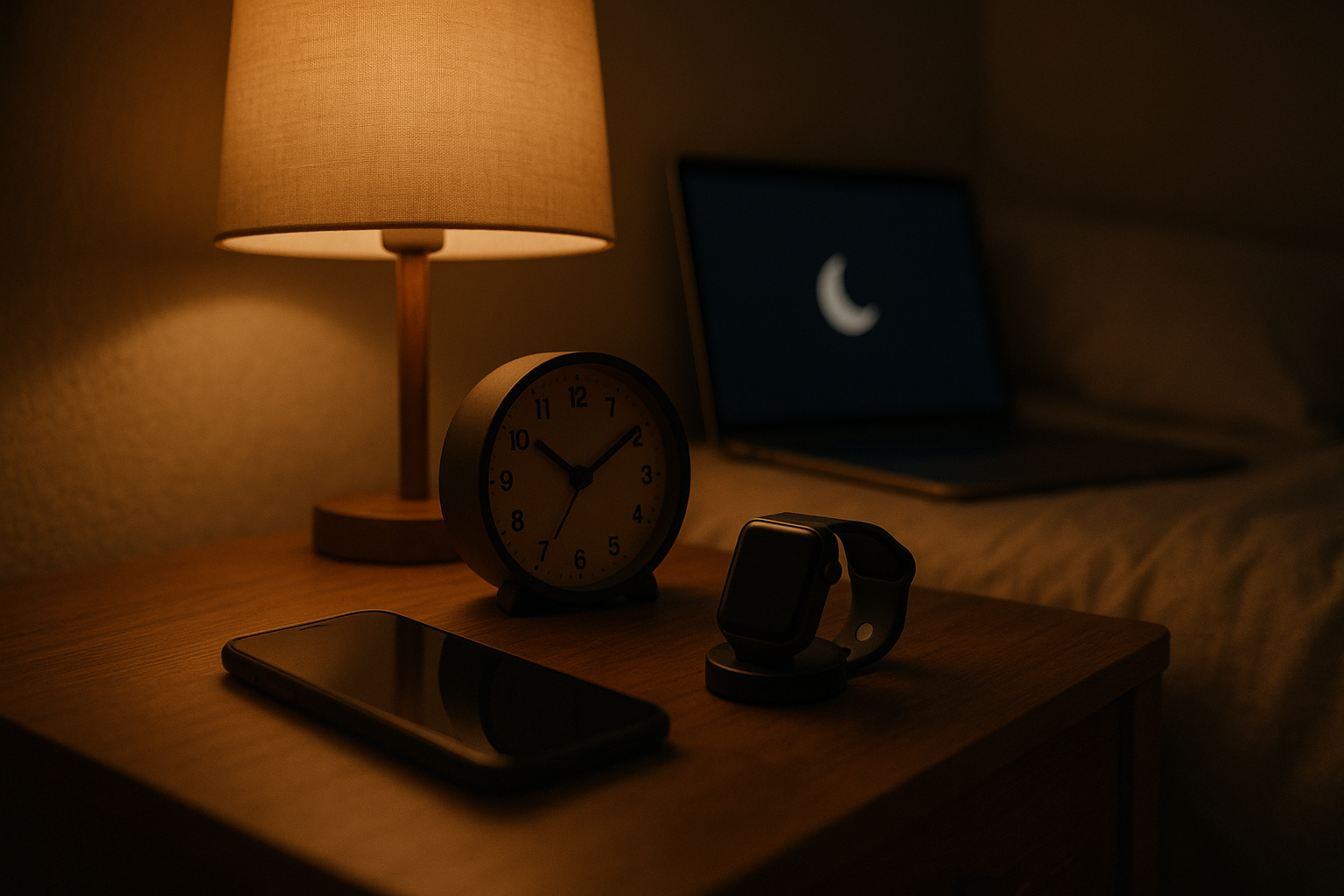
Physical design can beat digital temptation. Use the iPhone’s mute switch, flip laptops to clamshell/sleep, and charge devices outside the bedroom. Replace your phone alarm with a $10 analog clock or a sunrise lamp, and put a charging dock in the hallway. The fewer gadgets glowing within arm’s reach, the less likely you’ll doom-scroll.
7.1 Mini-checklist
- Phone face-down and on a non-bedside charger.
- Watch on bedside charger with sleep mode enabled.
- Laptop lid closed; system volume muted.
- Analog alarm clock in reach.
7.2 Why it works
- Environment removes the “maybe I’ll check” loop.
- Face-down + mute switch = no light/sound cues.
- Separate charging area establishes a powerful cue: bed is for sleeping.
Close-out: Physical cues make quiet the default—no settings menu needed.
8. Tame the Lock Screen and Previews (Out of Sight, Out of Mind)
Lock-screen alerts—even silent ones—can trigger micro-arousals. Hide notification previews, limit what appears on the lock screen at night, and prefer stacked/summary delivery in the morning. Android and iOS both allow granular control of lock-screen behavior, including hiding content until Face ID unlock and batching the nonurgent stuff.
8.1 How to do it
- iPhone: Settings → Notifications → Show Previews → When Unlocked; enable Scheduled Summary for low-priority apps.
- Android: Settings → Notifications → Hide sensitive content on lock screen; use Notification history to prune offenders; disable “ambient display” wake gestures overnight.
8.2 Pitfalls to avoid
- Letting messaging previews show at night (turn them off).
- Allowing suggestions/promotions on lock screens.
- Forgetting to disable always-on display in the sleep window.
Close-out: If it can’t light up your lock screen, it can’t pull you out of stage-2 sleep.
9. Automate with Routines, Shortcuts, and Geofencing
Automations make quiet time effortless. On iOS, Shortcuts can activate Sleep Focus when you plug in a bedside charger; on Android, Routines can toggle Bedtime mode when you arrive home; Alexa/Google Home can trigger Do Not Disturb with a “Good night” routine. Use these to catch edge cases—naps, travel nights, or irregular shifts.
9.1 Ideas to try
- iPhone Shortcuts: When Charger is connected in bedroom → Turn Sleep Focus on; at 6:30 a.m. → Turn off.
- Android Routines (Modes & Routines/Rules): Time + Wi-Fi SSID → Turn on Do Not Disturb + Grayscale.
- Alexa/Google: Voice routine “Good night” → Set DND, lower lights, lock doors.
9.2 Numbers & guardrails
- Keep automations few and transparent; too many become hard to debug.
- Test once in the afternoon; confirm everything turns back off in the morning.
- Add a manual override phrase (“I’m on call”) that cancels the routine for one night.
Close-out: Automations transform good intentions into guaranteed quiet.
10. Set Work Tools to Respect Off-Hours (Slack, Teams, Email)
Sleep suffers when work apps ignore boundaries. Configure Slack Do Not Disturb hours, Teams Quiet Time on mobile, and nudge email senders by scheduling your own messages for work hours. If your company supports it, adopt “right-to-disconnect” norms: no pings after hours unless on-call.
10.1 How to do it
- Slack: Profile → Pause notifications → Set a notification schedule; admins can set workspace defaults.
- Teams (mobile): Settings → Notifications → Quiet time (set daily or weekend hours).
- Gmail: Snooze inbox items that hit after bedtime to the morning.
10.2 Mini-checklist
- Team chat DND matches your device sleep schedule.
- Email snooze window covers bedtime.
- Status message: “Sleeping—emergencies call” (and list a phone number if policy allows).
Close-out: When work apps honor your sleep window, you stop bracing for the next late ping.
11. Do a Monthly Notification Audit (Measure, Then Trim)
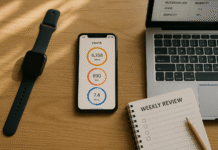
What you measure, you improve. Once a month, review Screen Time/Digital Wellbeing trends and Notification history. Identify top interrupters and either remove them, move them to summaries, or switch off their categories. Aim for 30–50% fewer daily alerts each month until you reach a sustainable baseline (often under 40–60/day for most people).
11.1 Steps
- Check Screen Time (iOS) or Digital Wellbeing (Android) weekly.
- On Android 8.0+, edit notification channels for noisy apps.
- On iOS, add offenders to Scheduled Summary or disable alerts.
11.2 Mini example
Week 1: 180 notifications/day baseline.
Week 4: 75/day after moving socials/news to summary, muting marketing, and cutting redundant alerts from two banking apps. Sleep latency improves because night cues stop.
Close-out: Trimming noise systematically builds a quieter life—and better nights.
12. Make a Family Sleep Policy (Shared Quiet Time That Actually Works)
For households, agree on a shared quiet policy: everyone’s devices go into Downtime/Sleep at set hours, smart speakers run DND, and chargers live outside bedrooms. Use Family Link (Android) or Screen Time (iOS) to enforce Downtime for kids while maintaining emergency contact exceptions. Post the policy on the fridge and revisit monthly.
12.1 Components
- Household quiet hours (e.g., 9:30 p.m.–6:30 a.m.).
- Shared charging station in the hallway.
- Downtime schedules on kids’ devices with “Always Allowed” apps limited to phone, alarms.
- Emergency list printed and updated.
12.2 Region-specific notes
- Emergency numbers vary by country—ensure the right numbers bypass silence.
- For boarding schools or late prayer times, shift schedules thoughtfully and communicate them.
Close-out: Families sleep best when quiet time is a team sport with simple, predictable rules.
FAQs
1) What’s the difference between Do Not Disturb, Focus, and Bedtime?
They overlap but aren’t identical. Do Not Disturb is the core concept: silence alerts. Focus (Apple/macOS) adds profiles (Sleep, Work) with allowed people/apps and lock-screen customization. Bedtime/Sleep layers on dimming, grayscale, and stricter lock-screen behavior tailored to nighttime. Use all three where available: schedule Sleep for overnight, keep DND/Focus for daytime deep work.
2) Will Emergency Bypass or priority contacts ring even if my phone is muted?
Yes—when configured correctly. On iPhone you can enable Emergency Bypass per contact so calls and texts break through silenced modes. Android’s priority interruptions and starred contacts settings do something similar. Keep the list short and test with a friend at a safe time to confirm it works.
3) How do I stop Slack and Teams from waking me?
Set Slack notification schedules (Pause notifications → Set a schedule) and Teams Quiet time on mobile with daily and weekend hours. Align both to your device’s Sleep/DND schedule. When possible, your team should agree to after-hours norms; use scheduled send for non-urgent messages.
4) I use a smartwatch to wake up. Can I still mute everything?
Yes. Enable Sleep mode on the watch, mirror your phone’s sleep focus (where supported), and disable overnight haptics except the alarm. Silent alarms (gentle vibration) wake many people without disturbing partners. Test once in the afternoon to confirm the alarm fires when DND is on.
5) What’s better: app-by-app muting or system DND?
Use both. System-level DND guarantees quiet during your sleep window; app-level pruning reduces daytime noise and prevents leaks. Start with DND, then spend 10 minutes taming the worst offenders via Android channels or iOS Scheduled Summary.
6) Should I turn off Wi-Fi at night?
It’s optional. For some families it helps enforce boundaries for kids’ devices; for others it’s unnecessary or risky if someone relies on connected medical gear. Prefer per-device pauses or family controls over cutting the whole house connection.
7) How do I handle travel or night shifts?
Create a second schedule (e.g., “Travel Sleep”) that shifts your DND/Sleep hours and uses automations (geofencing, charger-connected triggers) so the right profile turns on automatically. Don’t forget to switch back when you return.
8) Can I keep late-night delivery or ride-share alerts but silence everything else?
Yes—allow those specific apps through DND/Focus (iOS) or mark their channels as priority (Android). Keep previews hidden on the lock screen to reduce wake-ups from nonessential info.
9) Do notification summaries mean I’ll miss things?
Summaries delay nonurgent alerts to a chosen time (e.g., 7:30 a.m.), but urgent calls/allowed apps still break through immediately. It’s designed to reduce drip-feed distraction, not block critical events.
10) I share a room and need absolute silence—no buzz, no light. Any tips?
Go all-in on Sleep/Bedtime mode, turn off haptics, face the phone down, disable always-on displays, and use a silent watch alarm for waking. Consider moving the phone out of the room and using an analog alarm clock to remove the temptation entirely.
Conclusion
Better sleep rarely comes from a single switch; it’s the sum of many small defaults pointing in a quiet direction. When you schedule DND/Focus across your devices, whitelist a tiny set of emergency contacts, apply Bedtime/Wind Down visuals, and silence the noisiest apps at the source, you take your brain off alert duty. Add mirrored sleep modes on wearables, quiet your smart speakers, and set boundaries in work apps, and your nights stop feeling like open office hours. If you live with others, a brief family policy plus router and parental-control schedules can turn individual good habits into a household quiet culture. Start with one change today—set a nightly schedule—and stack the rest over a week. Your reward is predictable: fewer wake-ups, calmer mornings, and a brain that trusts the night to stay quiet.
CTA: Pick your sleep window, set your first nightly DND schedule now, and enjoy your first truly quiet night.
References
- Allow or silence notifications for a Focus on iPhone — Apple Support. Accessed Aug 2025. https://support.apple.com/guide/iphone/allow-or-silence-notifications-for-a-focus-iph21d43af5b/ios
- Set up a Sleep Focus schedule in Health on iPhone — Apple Support. Accessed Aug 2025. https://support.apple.com/guide/iphone/set-up-a-schedule-for-a-sleep-focus-iphaf56dceb4/ios
- Use notifications on your iPhone or iPad (Scheduled Summary, grouping, previews) — Apple Support (Apr 8, 2025). https://support.apple.com/en-us/108781
- Manage how you spend time on your Android phone (Digital Wellbeing & Bedtime mode) — Google Help. Accessed Aug 2025. https://support.google.com/android/answer/9346420
- Set a bedtime schedule (Bedtime mode: Keep screen dark) — Google Help. Accessed Aug 2025. https://support.google.com/android/answer/9887159
- Focus & Do Not Disturb in Windows 11 — Microsoft Support. Accessed Aug 2025. https://support.microsoft.com/en-us/windows/focus-stay-on-task-without-distractions-in-windows-cbcc9ddb-8164-43fa-8919-b9a2af072382
- Make it easier to focus on tasks (Do Not Disturb, priority notifications) — Microsoft Support. Accessed Aug 2025. https://support.microsoft.com/en-us/windows/make-it-easier-to-focus-on-tasks-0d259fd9-e9d0-702c-c027-007f0e78eaf2
- Pause notifications with Do Not Disturb — Slack Help Center. Accessed Aug 2025. https://slack.com/help/articles/214908388-Pause-notifications-with-Do-Not-Disturb
- Quiet time in Microsoft Teams for mobile devices — Microsoft Support. Accessed Aug 2025. https://support.microsoft.com/en-us/office/quiet-time-in-microsoft-teams-for-mobile-devices-174c4d2d-c7c1-4228-80a7-031c14f9bcf2
- Snooze emails until later — Gmail Help. Accessed Aug 2025. https://support.google.com/mail/answer/7622010
- Turn Do Not Disturb on or off (Google Nest) — Google Nest Help. Accessed Aug 2025. https://support.google.com/googlenest/answer/7552172
- Turn Do Not Disturb on/off; schedule DND (Alexa devices) — Amazon Customer Service. Accessed Aug 2025. and https://www.amazon.com/gp/help/customer/display.html
- Technology in the Bedroom — Sleep Foundation (July 2025 update). https://www.sleepfoundation.org/bedroom-environment/technology-in-the-bedroom
- How Electronics Affect Sleep — Sleep Foundation (July 2025 update). https://www.sleepfoundation.org/how-sleep-works/how-electronics-affect-sleep
- Over three-fourths of Americans lose sleep due to digital distractions — American Academy of Sleep Medicine (Jan 2024). https://aasm.org/over-three-fourths-of-americans-lose-sleep-due-to-digital-distractions-sleep-experts-urge-a-change/
- The effect of smartphone usage at bedtime on sleep quality among working adults — Journal of Nature and Science of Sleep (2019), via PubMed Central. https://pmc.ncbi.nlm.nih.gov/articles/PMC6618184/
- About notifications (Android 8+ channels and priority) — Android Developers (July 23, 2025). https://developer.android.com/develop/ui/views/notifications/channels and https://developer.android.com/develop/ui/views/notifications