













If you’ve ever started a health routine only to lose steam after a few weeks, the missing piece usually isn’t willpower—it’s feedback. The easiest way to get trustworthy feedback is by wiring your daily life into a simple tech stack that logs what you eat, how you move, and how you sleep without a lot of manual effort. This guide shows you exactly how to do that with nine practical, research-informed steps that work whether you’re just getting started or you’re optimizing an already solid routine. Brief note: this article is educational, not medical advice—talk to your clinician before changing your diet, training, or sleep plan.
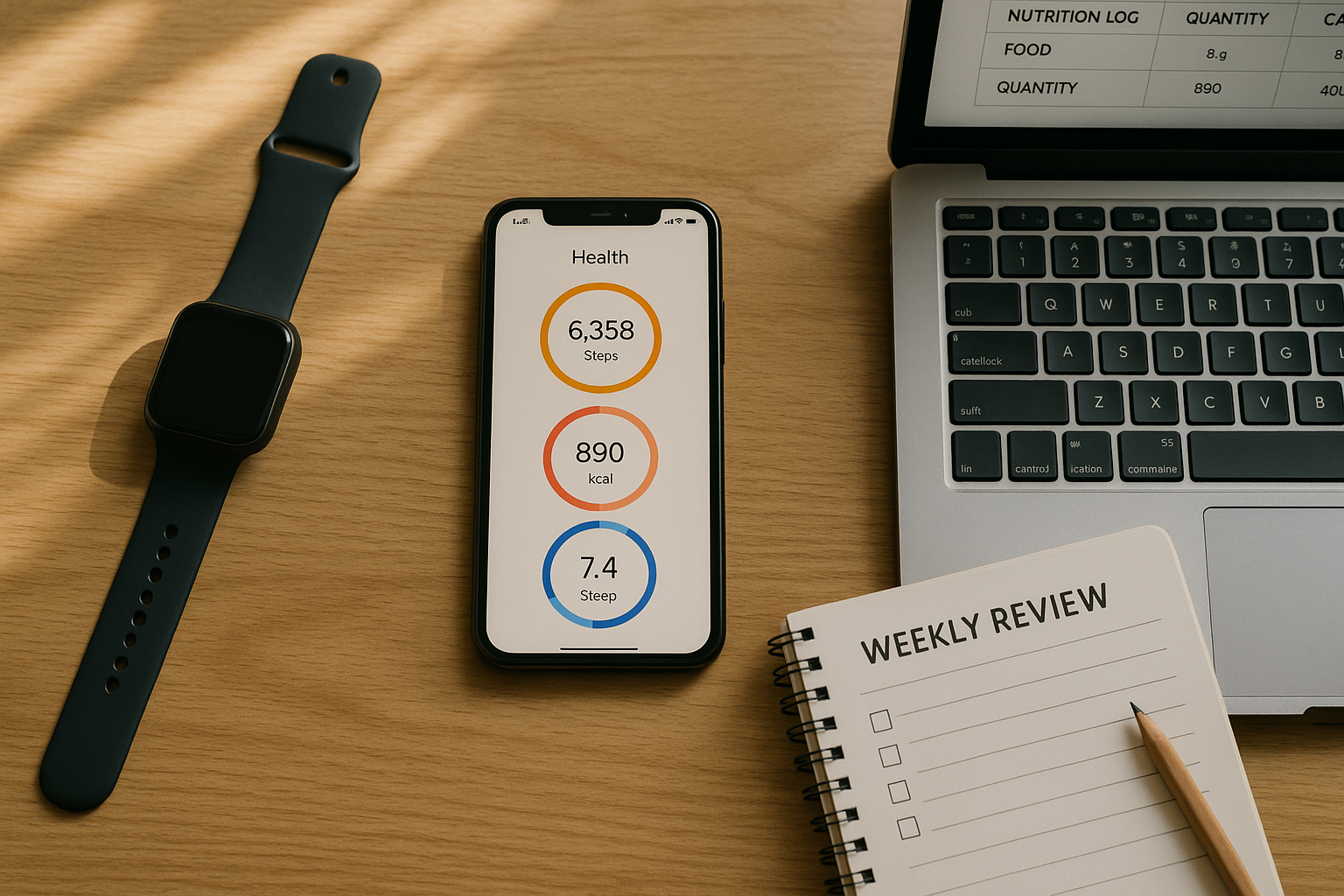
Quick answer: Using apps and tools to track health habits means connecting a phone-based health hub (Apple Health or Google Fit), a food-logging app, and activity/sleep trackers so your diet, exercise, and sleep are recorded automatically and reviewed weekly to adjust goals. Done right, it’s set-and-review, not tap-all-day. Apple’s Health app centralizes data and permissions on iPhone, while Google Fit plays that role on Android.
1. Start With a Unified Health Hub (Apple Health or Google Fit)
The fastest way to make tracking stick is to route everything into a single “source of truth.” On iPhone, the Health app aggregates data from your Apple Watch and compatible apps, and lets you control which apps can read or write each data type. On Android, Google Fit collects activity, heart rate, and other metrics—and you decide which third-party apps can access or share that data. This consolidation prevents double-counting, makes trends visible, and gives you one place to update permissions if your app stack changes. Set the hub first, and every other tool becomes simpler to evaluate and swap.
To set up: install Apple Health (preinstalled) or Google Fit, connect your devices/apps, and review permissions. In Apple Health, you can prioritize data sources and export everything if you ever want to change platforms or analyze your data elsewhere. In Google Fit, you can review connected apps and revoke access anytime. This “hub-first” approach gives you data continuity—even if you test new nutrition or training apps later.
How to connect and control data access
- Apple Health: Manage which apps and devices can read/write each health category under Settings → Health → Data Access & Devices; you can also export all Health data as an XML archive.
- Google Fit: Manage Fit data permissions and what connected apps can access; you can disconnect or delete your data at any time.
Mini-checklist
- Install/confirm your hub (Health or Fit).
- Connect your wearable(s) and favorite apps.
- Review read/write permissions for activity, nutrition, sleep.
- Turn on backups/export awareness (Health export; Fit account portability).
Synthesis: A single health hub prevents chaos, keeps permissions transparent, and future-proofs your habit data.
2. Log Food the Smart Way (Cronometer or MyFitnessPal)
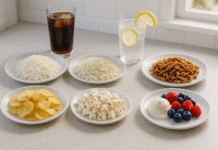
Food logging is easiest when the app reduces friction, gives meaningful nutrient feedback, and integrates with your hub. Cronometer is excellent for deep nutrient analysis—including dozens of micronutrients—while MyFitnessPal is popular for macro-focused logging, barcode scanning, and broad integrations. Pick the one that maps to your goals: micronutrient sufficiency, athletic macros, or simple calorie awareness.
Start by setting calorie and macronutrient targets that match your training and body composition goals. If you’re focused on nutrient density or specific vitamins/minerals (e.g., iron, magnesium), Cronometer’s dashboards can surface gaps quickly. If you’re using macro-based meal planning, MyFitnessPal’s macros-by-meal view and Premium goal controls make day-to-day compliance straightforward. Use barcode scanning and recipes to speed up logging and avoid “I’ll do it later”—that’s where most people fall off.
Tools & examples
- Cronometer: Tracks macros and 80+ micronutrients; targets are based on DRIs and can be customized. Cronometer
- MyFitnessPal: Barcode scanner for quick logging; Premium lets you set precise macro goals and customize by day.
Practical steps
- Log the same meal once; duplicate to future days.
- Create recipes for frequent dishes.
- Use meal-level macros to catch skewed days (e.g., protein too low at breakfast).
Synthesis: Choose the app that aligns with your target (micros vs. macros), then remove friction with scanning, recipes, and repeat meals.
3. Track Activity With Meaningful Metrics (Strava, Garmin, Fitbit)
Activity tracking should go beyond steps. Your app should reflect intensity, progression, and recovery so you avoid both undertraining and burnout. Google Fit pioneered Move Minutes and Heart Points to recognize intensity; Fitbit uses Active Zone Minutes that award double credit during vigorous work; and Garmin layers on training load/status and the Body Battery energy gauge. If you’re a runner or cyclist, Strava adds social motivation, routes, and a subscriber Training Log that visualizes volume over time.
For general health, aim for the WHO guideline of 150–300 minutes of moderate or 75–150 minutes vigorous activity weekly (or an equivalent mix). Translate that into app-native metrics you’ll actually check: e.g., 150 Heart Points in Google Fit, or an Active Zone Minutes target in Fitbit. For training, use Garmin or Strava to see how weekly load evolves and where to schedule recovery.
Numbers & guardrails
- Google Fit: One minute of brisk walking (≈100+ steps/min) = 1 Heart Point; running at higher cadence = 2 Heart Points.
- Fitbit: Active Zone Minutes give 2 minutes of credit per minute in vigorous/peak zones (as of Aug 2025).
- Garmin: Training Status and Body Battery synthesize load, HRV, stress, sleep, and activity to guide effort.
- Strava: Subscriber Training Log shows all your training in one place for pattern spotting.
- WHO: Adult activity recommendations for health benefits.
Synthesis: Pick intensity-aware metrics you understand (Heart Points, Active Zone Minutes, Training Load), and let them steer your weekly effort.
4. Make Sleep a Pillar, Not an Afterthought (Fitbit, Oura, Apple/Google)
Sleep quality drives training results, appetite regulation, and mood. Most adults benefit from 7+ hours of nightly sleep; if you’re training hard, you may need more. Trackers such as Fitbit and Oura estimate sleep stages and produce composite scores to help you see patterns over time. The Fitbit Sleep Score combines time asleep, sleep stages, and restoration (heart rate/HRV and restlessness). Oura provides staging breakdowns and insights into nightly trends.
Start by wearing your device nightly for two weeks to establish a baseline. Watch for consistency, time in bed, latency, and how changes (late caffeine, evening screens, intense PM workouts) influence your score. Don’t obsess over single-night swings—trend lines tell the story.
Tools/Examples
- Fitbit Sleep Score: Calculated from sleep duration, deep/REM, and restoration; accessible in the app and select watches.
- Oura Sleep Stages: App explains stages and how the algorithm estimates them.
- Guidelines: AASM/SRS recommend adults obtain 7+ hours per night to reduce health risks.
Mini-checklist
- Wear the device nightly; sync each morning.
- Compare bedtime consistency and wake times to scores.
- Adjust habits (light, caffeine cut-off, wind-down) and watch trend changes for 1–2 weeks.
Synthesis: Treat sleep as a trackable input—optimize consistency first, then tweak behaviors and watch the score follow.
5. Automate Prompts and Logs (Shortcuts on iPhone, IFTTT to Sheets)
Consistency comes from reducing decisions and remembering less. On iPhone, Shortcuts lets you create personal automations—time-based or event-based triggers—to nudge logging, start sleep wind-downs, or auto-open your food app at mealtimes. On Android or cross-platform, IFTTT can pipe workout summaries or body metrics to Google Sheets for a lightweight dashboard, or trigger notifications based on thresholds.
Use Shortcuts to schedule a nightly “prepare for bed” routine: lower phone brightness, turn on Do Not Disturb, and open your sleep app at a set time. Or trigger a “post-workout” note capture when an Apple Watch workout ends. If you’re data-curious, set IFTTT to append new rows to a spreadsheet whenever Fitbit logs an activity—now you’ve got a personal data lake without coding.
How to get started
- Shortcuts: Create Personal Automation (e.g., Time of Day, Apple Watch Workout), then add actions like Open App, Set Focus, Find Health Samples.
- IFTTT + Sheets/Fitbit: Use prebuilt Applets to log workouts or body metrics into Google Sheets automatically.
Synthesis: Automations transform good intentions into defaults—your future self doesn’t have to remember the nudge.
6. Pick the Right Wearable for Passive Data (Apple Watch, Garmin, Fitbit)
Passive data beats manual entry. The best wearable is the one you’ll wear every day given your budget and comfort. Apple Watch excels at tight ecosystem integration with the Health app and rich workout tracking on iPhone. Garmin shines for endurance athletes with multi-day battery life, robust GPS, and helpful recovery guidance (Training Status, Body Battery). Fitbit offers approachable tracking and “Active Zone Minutes” that align with intensity-based public-health guidance; its app integrates with Google services and many third-party platforms.
What to prioritize: battery life (will you charge daily or weekly?), ecosystem fit (iOS vs. Android), comfort (especially for sleep), and the specific metrics you’ll act on (e.g., HRV, zone minutes, pace, power). Remember: if a metric never changes your behavior, it’s noise.
Mini-checklist
- Battery: Can it survive overnight for sleep tracking?
- Metrics: Does it provide the one metric you’ll use to decide today’s effort?
- Sync: Does it sync seamlessly with your hub (Health or Fit)?
- Recovery: Do features like Body Battery help you pace the week?
Synthesis: Choose wearables by the decisions they help you make—not by the length of the spec sheet.
7. Respect Privacy and Data Control From Day One
Health data is sensitive. Good news: both Apple and Google provide granular controls for what each app can read and write, and you can export or delete data when you want. In Apple Health, permissions are per data type (e.g., steps vs. sleep) and you can revoke access or export everything. In Google Fit, you can see connected apps, choose what data to share, and revoke access or delete data entirely.
If you ever switch platforms, export from Apple Health, or use Google Takeout for broader Google data portability. Review permissions periodically—especially after trying new apps—and keep only what you need.
Practical steps
- In Apple Health, visit Settings → Health → Data Access & Devices; review read/write for each app. Export your Health data as needed.
- In Google Fit, use Manage Fit Data Permissions and Connected app sharing to control access or disconnect apps.
Synthesis: Treat privacy like you treat training—set your baselines, review regularly, and prune permissions you don’t need.
8. Focus on the Few Metrics That Matter
More data isn’t better; useful data is. For most people, a compact KPI set works best:
- Diet: total daily calories (kcal), protein in g/kg body weight, and one micronutrient you’re prone to miss (e.g., iron).
- Activity: minutes meeting WHO guidelines or app equivalents (Heart Points, Active Zone Minutes).
- Sleep: time asleep and a composite score (Fitbit Sleep Score) with an eye on consistency.
Translate public-health guidelines into app-native goals: for example, 150–300 WHO minutes ≈ 150 Heart Points weekly in Google Fit. Keep a protein floor (e.g., 1.2–1.6 g/kg for active individuals; confirm with your dietitian) and a sleep target of 7+ hours for adults. Then review trends weekly—if you’re meeting activity and sleep targets but weight is drifting, adjust calorie intake; if training stalls, evaluate recovery signals (rest days, Body Battery).
Mini-checklist
- Pick 3–5 core metrics; ignore the rest for 30 days.
- Map public-health goals to app targets (e.g., Heart Points ↔ WHO minutes).
- Build a weekly dashboard (Section 9) to judge progress, not daily noise.
Synthesis: Clarity beats completeness—choose KPIs that drive decisions and make them visible.
9. Run a Weekly Review Ritual (15–30 Minutes)
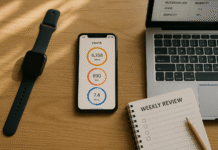
Tracking only pays off when you review and adjust. Block 15–30 minutes once a week to look at your activity totals, sleep consistency, and nutrition compliance. In Strava, the Training Log helps you visualize time-in-sport by week; in Fitbit or Google Fit, check your weekly intensity minutes or Heart Points; in your food app, scan macro/micro patterns. Keep a single notes doc with three bullets: What worked, What didn’t, What I’ll change next week.
If you like a DIY dashboard, an IFTTT → Google Sheets setup can aggregate workouts or sleep summaries; pivot by week and add a simple sparkline for trend visibility. On iPhone, a Shortcut can pre-open all your review screens and start a timer—press one button, do the ritual, done.
How to structure the review
- Activity: Did you hit your target minutes/points? Any spikes or dips? (Strava Training Log/Google Fit dashboards)
- Sleep: Was bedtime consistent? Did score trends rise or fall? (Fitbit Sleep Score)
- Diet: Were protein and calories on plan on training vs. rest days? (Cronometer/MyFitnessPal views)
- Next week: One constraint to remove (e.g., pre-log lunches); one habit to reinforce (e.g., 10:30 pm wind-down Shortcut).
Synthesis: A simple, repeated weekly review is where raw data turns into better choices and steady momentum.
FAQs
1) What’s the simplest stack to start with if I hate logging?
Use your phone’s health hub (Apple Health or Google Fit), pair a wearable you’ll actually wear to capture activity and sleep, and add a food app only for key meals (e.g., weekday lunches). Set automations for bedtime and post-workout prompts so you don’t rely on memory. You can always layer deeper nutrition tracking later.
2) How do I translate WHO activity guidelines into app goals?
WHO recommends 150–300 minutes of moderate or 75–150 minutes of vigorous activity weekly (or a mix). In Google Fit, Heart Points map intensity into a number that’s easy to track; aim for around 150 Heart Points weekly. On Fitbit, set a weekly Active Zone Minutes target and notice that vigorous minutes count double.
3) Do sleep stage estimates really matter?
They’re estimates, not clinical polysomnography, but trend-level insights are useful. Fitbit and Oura use movement and heart rate patterns (including HRV) to estimate stages and produce scores. Focus on consistency and behaviors that improve sleep score rather than exact stage minutes.
4) How can I get my data out if I change apps later?
Apple Health can export all data as XML, and Google Fit lets you control connected apps and delete or manage data. Many services also support CSV exports or Google Sheets via IFTTT, which gives you a neutral archive.
5) I’m overwhelmed by metrics. Which few should I track?
Pick 3–5: calories and protein (diet), activity minutes or intensity points (movement), and sleep duration/score. These link directly to energy balance, cardiovascular load, and recovery—core levers for most goals. Add niche metrics only if they change your behavior.
6) How accurate are wearable heart rate and calorie numbers?
Expect directional accuracy and useful trends rather than lab-grade precision. Heart rate is generally reliable for steady movement, less so for abrupt intensity spikes. Calories are estimates; use them to compare your days, not as absolute truth. Choose devices and metrics that inform your next decision (e.g., “go easy today”). (General guidance; device documentation explains each metric’s method.)
7) Can I automate everything so I never log food?
You can automate a lot (reminders, workout/sleep capture, dashboards), but food still benefits from minimal intentional input. Use barcode scans, saved meals, and recipes to make logging 60–90 seconds per meal. Automate the prompts; keep just enough friction to stay mindful.
8) Is there a risk to sharing health data with many apps?
Yes—more connections mean more places your data lives. Keep your hub central, connect only apps you use, review permissions monthly, and revoke stale access. Both Apple and Google provide controls to view, limit, and revoke per data type or app.
9) How do I compare weeks without getting lost in details?
Use a weekly ritual: one page with three bullets—Wins, Frictions, Next tweak—and a quick pass through your Training Log (if you’re a Strava subscriber), Fitbit/Google Fit weekly summaries, and your nutrition app’s weekly totals. Keep decisions small and consistent.
10) Should I track HRV or Body Battery?
If you’re training frequently, Body Battery can help pace hard/easy days by combining HRV, stress, sleep, and activity into a simple number. Use it to adjust effort, not to justify skipping fundamentals like sleep and protein.
Conclusion
The point of tech in your health routine isn’t to make you stare at more screens; it’s to capture honest, consistent evidence so you can make better choices with less effort. Start by choosing a single health hub (Apple Health or Google Fit), then layer one nutrition app, one wearable, and a few automations. Anchor your plan to public-health targets (WHO minutes, 7+ hours sleep) and a short weekly review. Keep your KPIs tight—calories/protein, intensity minutes or points, and sleep duration/score—so you always know what to change next. This “set and review” workflow turns health from a willpower contest into a responsive system that adapts to your life.
Copy-ready CTA: Pick your hub, pick your food app, and set your first automation today—your next seven days will feel different.
References
- Manage Health data on your iPhone, iPad, or Apple Watch — Apple Support. (n.d.). Apple Support
- Share your data in Health on iPhone (export XML) — Apple Support. (n.d.). Apple Support
- Protecting access to users’ health data (Health permissions) — Apple Platform Security. (May 13, 2022). Apple Support
- Manage Google Fit’s permissions / Connected app sharing — Google Fit Help. (n.d.). and https://support.google.com/fit/answer/10066796 Google Help
- Earn Heart Points to stay healthy — Google Fit Help. (n.d.). Google Help
- Active Zone Minutes — Fitbit Help. (n.d.). Google Help
- What Is the Training Status Feature on My Garmin Device? — Garmin Support. (n.d.). Garmin Support
- Body Battery (how it works) — Garmin Manuals. (n.d.). Garmin
- Training Log — Strava Support. (Updated March 21, 2024). Strava Support
- Sleep Stages — Oura Help. (n.d.). Oura Help
- What’s sleep score in the Fitbit app? — Fitbit Help. (n.d.). Google Help
- WHO Guidelines on Physical Activity and Sedentary Behaviour — World Health Organization. (Nov 25, 2020). World Health Organization
- Recommended amount of sleep for a healthy adult — AASM/Sleep Research Society Consensus. (2015). AASM
- How do I use the barcode scanner to log foods? — MyFitnessPal Help. (Sep 30, 2024). https://support.myfitnesspal.com/hc/en-us/articles/360032624771 support.myfitnesspal.com
- Macros by Meal FAQs — MyFitnessPal Help. (Aug 22, 2024). https://support.myfitnesspal.com/hc/en-us/articles/360032625151 support.myfitnesspal.com
- How To: Set Your Macro and Micronutrient Targets — Cronometer Blog. (Aug 21, 2024). Cronometer
- Shortcuts: Create a new Personal Automation / Event Triggers — Apple Support. (n.d.). and https://support.apple.com/guide/shortcuts/event-triggers-apd932ff833f/ios Apple Support
- Automate your Google Sheets integrations — IFTTT. (n.d.). IFTTT