

























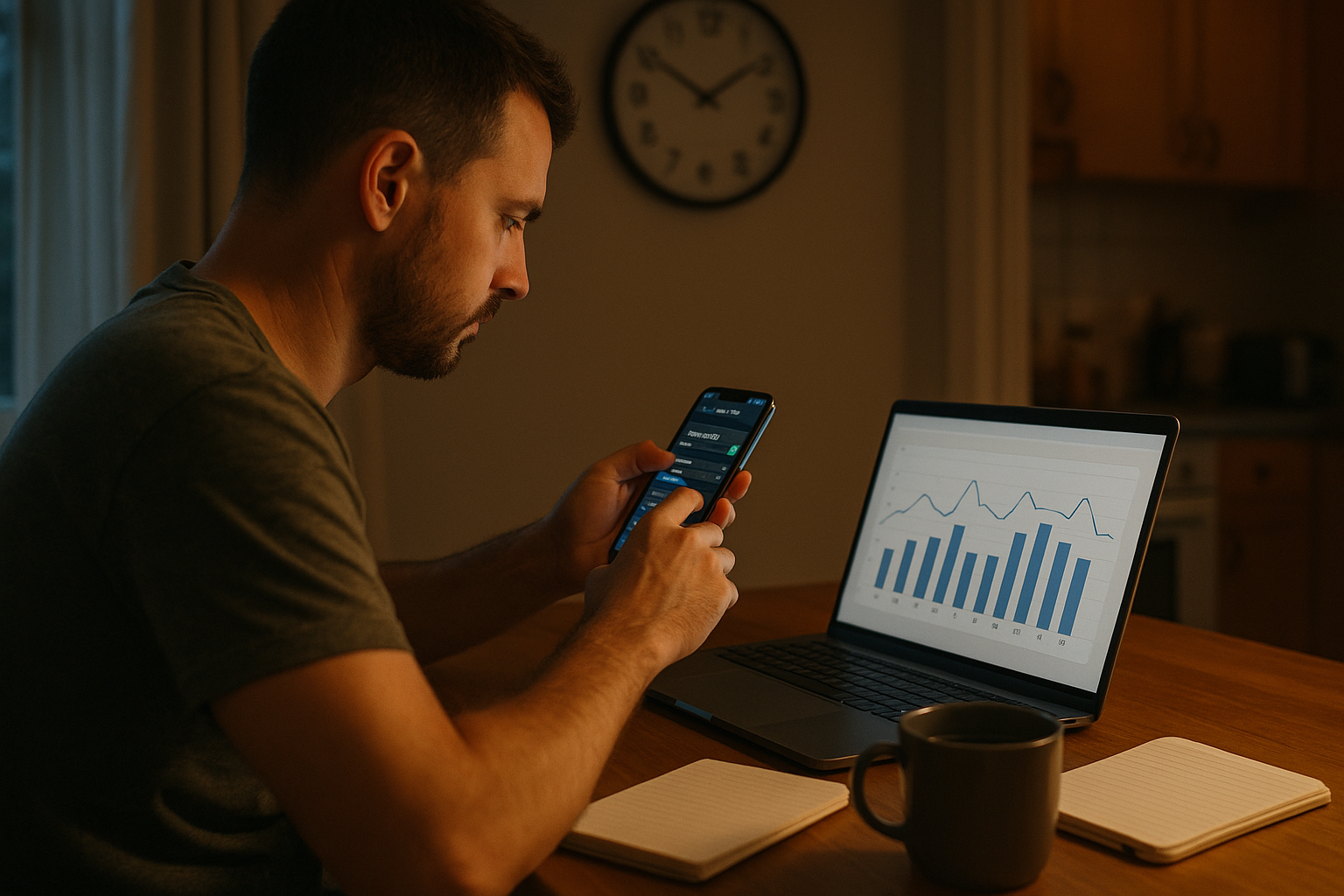
If your phone often hijacks your attention, you don’t need a bootcamp—you need clear limits that fit your life. This guide shows you how to use app trackers and simple self-imposed rules to cut screen time without missing essentials like family calls or work messages. You’ll learn how to baseline your usage, set realistic caps, automate focus-friendly modes, add helpful friction, and keep going when life gets messy. Quick note: this article offers general well-being guidance, not medical advice.
Quick answer: Setting realistic screen-time limits means measuring your current use, capping the apps that overrun your day, and scheduling device modes that reduce interruptions—then reviewing weekly and adjusting by small, steady increments. Typical flow: 1) baseline → 2) set goals → 3) configure limits & modes → 4) add friction → 5) review & iterate. Ofcom’s 2024 data shows UK adults averaged 4h 20m/day online, so you’re not alone—the goal is balance, not zero.
1. Baseline your real usage before you change anything
Start by understanding exactly where your time goes. Most people underestimate certain apps (social, short-video, casual games) and overestimate “productive” time. Use the built-in dashboards on your phone for a full week without altering habits. On iPhone or iPad, Screen Time shows total pickups, daily/weekly usage, and app/category breakdowns. On Android, Digital Wellbeing reports time by app and unlocks per-day patterns. Your baseline should capture weekdays vs. weekends and late-evening spikes, because that’s where small rules pay outsized dividends. Set a simple target: reduce total non-essential use by 10–20% per week until you arrive at a sustainable level. Keep an eye on how often you pick up your phone; fewer pickups often drive larger time gains than aggressive app blocks.
1.1 How to do it
- iPhone/iPad: Settings → Screen Time → turn on; review App & Website Activity, Notifications, and Pickups; set “Share Across Devices” if you use multiple Apple devices.
- Android: Settings → Digital Wellbeing & parental controls → open the Dashboard; note top apps, unlocks, and notification counts.
1.2 Mini-checklist
- Track 7 full days, including a weekend.
- Note any >30-minute late-night sessions.
- Flag your Top 3 time sinks by name (e.g., TikTok, Instagram, YouTube).
- Decide an initial weekly reduction (10–20%).
Finish by writing your one-sentence goal: “I’ll cut non-essential phone use from 4h to 3h/day in four weeks.”
2. Turn on OS features that enforce time boundaries (App Limits & Timers)
The most reliable guardrail is the one your OS already provides. On iPhone/iPad, App Limits lets you cap categories (e.g., Social, Games) or individual apps with daily limits that can vary by day. On Android, App timers pause an app when time is up, dim its icon, and reset at midnight. Start with your Top-3 apps and set limits that feel tight but realistic—say, 60–90 minutes across all social apps on weekdays, 120 minutes on weekends. This preserves flexibility while preventing runaway sessions.
2.1 How to do it
- iPhone/iPad: Settings → Screen Time → App Limits → Add Limit → choose categories/apps → set time; use Customize Days for different weekday/weekend caps.
- Android (stock): Settings → Digital Wellbeing & parental controls → Dashboard → tap hourglass next to an app → set Daily app timer.
- Samsung (One UI): Settings → Digital Wellbeing → App timers; or Modes & Routines for per-mode caps.
2.2 Numbers & guardrails
- Set first-week caps at ~75–85% of your baseline for that app.
- Drop by 10–20% weekly until urges decrease.
- Use stricter weekday limits and looser weekend caps to avoid “all-or-nothing” rebounds.
Close by enabling “block at end of limit” equivalents so the limit actually blocks, not just warns. (On iOS, ensure Downtime/App Limits are set to block, not only notify.)
3. Schedule Downtime, Focus, and Bedtime modes to cut interruptions
Interruptions drive impulsive checks. Scheduling Downtime/Focus (iOS) or Focus mode/Do Not Disturb/Bedtime (Android) reduces alerts during your fragile periods—deep work, dinners, workouts, and sleep. As of August 2025, iOS Focus profiles can filter which people/apps can notify you and can auto-activate by time, location, or app use. Android’s Focus mode pauses selected apps on a schedule; Bedtime mode can fade to grayscale and quiet notifications for better sleep hygiene. These modes create predictable quiet windows, which research links to lower strain and better performance when notification-driven interruptions are reduced.
3.1 Suggested schedules
- Work Focus: weekdays 9:30–12:00 & 13:30–16:30; allow team apps, silence socials.
- Evening Wind-down/Bedtime: nightly 22:00–07:00; allow family/urgent contacts; enable grayscale on Android Bedtime.
- Meal Focus: daily 30–60 minutes around meals; allow calls only.
3.2 How to do it
- iPhone/iPad: Settings → Focus → choose profile → Add Schedule (time/location/app) and Allow/Silence specific people/apps; add Focus filters for Mail/Calendar.
- Android: Settings → Digital Wellbeing → Focus mode → choose apps → Set a schedule; Bedtime mode under Digital Wellbeing or Clock app.
Wrap with one sentence: predictable quiet windows make every other limit easier to keep.
4. Add “friction” with third-party blockers and delays (Freedom, RescueTime, Forest, One Sec)
When willpower dips, friction helps. Freedom blocks apps/sites across devices with recurring schedules and a “Locked Mode.” RescueTime adds automatic time-tracking plus blocklists during Focus Sessions. Forest gamifies staying off the phone by growing a virtual tree that “dies” if you leave the app. One Sec inserts a 10-second breathing pause before opening target apps; a peer-reviewed study shows it nudged users to dismiss consumption attempts in ~36% of cases. Start with one tool that fits your style—cross-device blocking (Freedom), detailed analytics (RescueTime), playful deterrence (Forest), or pre-app delay (One Sec).
4.1 Setup tips
- Block in recurring sessions that match your calendar (e.g., weekdays 9–12 & 13:30–16:30).
- Use locked sessions for deep work; keep a short whitelist for research sites.
- Add a pre-app delay to your top two temptations.
4.2 Mini case
Baseline YouTube = 110 min/day. Add Freedom blocks 09:00–12:00 & 14:00–17:00, + One Sec on YouTube and Instagram. After 2 weeks, YouTube drops to ~55–70 min/day while work hours stay alert-free.
Finish by reminding yourself: friction isn’t punishment; it’s scaffolding for better defaults.
5. Prune notifications; batch the rest
Every buzz is an invitation to switch tasks. Reducing notifications lowers stress and improves performance in experiments where interruptions are cut. Start with a bold sweep: turn off all non-human, non-urgent notifications (likes, “suggested for you,” retail promos). Keep direct messages, calendar alerts, and 2FA codes. Batch the rest into summaries or digest windows and use Do Not Disturb during deep work, allowing exceptions for key contacts. Evidence is mixed on blanket notification bans, so test changes for a week, then keep what helps. Taylor & Francis Online
5.1 How to do it
- iPhone/iPad: Use Focus to allow only selected people/apps; optional “Deliver Quietly” via Notification Settings.
- Android: Do Not Disturb with exceptions and per-app notification controls; add Focus mode schedules.
5.2 Checklist
- Disable badges for social apps.
- Turn off “suggested”/promotional alerts.
- Summarize newsletters; unsubscribe aggressively.
Synthesis: less noise = fewer pickups = more time back.
6. Use Bedtime routines to protect sleep (and your next day)
Late-night scrolling steals tomorrow’s focus. A practical fix is a nightly routine that combines Bedtime mode (Android) or Sleep Focus/Downtime (iOS) with app limits and physical cues (charger outside the bedroom, real alarm clock). Bedtime modes can quiet notifications and shift screens to grayscale, which some research links to reduced social use and overall screen time; sleep organizations also caution that evening screen exposure can disrupt circadian rhythms. Aim to establish a 90-minute pre-sleep wind-down free of social feeds and work chat.
6.1 How to do it
- Android: Settings → Digital Wellbeing → Bedtime mode; schedule nightly; enable grayscale & Do Not Disturb.
- iPhone/iPad: Settings → Focus → Sleep; pair with Downtime 1–2 hours before bed.
6.2 Numbers & guardrails
- Target 7–9 hours of sleep for adults; schedule wind-down accordingly.
- Keep charging outside the bedroom; use a non-phone alarm.
Close: consistent wind-downs shrink next-day cravings.
7. Try grayscale & home-screen minimalism to reduce impulse checks
Colorful icons and thumbnails lure taps. Switching your display to grayscale and hiding addictive apps off the first home screen can make checking less rewarding. Studies (college and adult samples) suggest grayscale can reduce daily screen time by ~38–40 minutes on average, and other work finds it lowers social media appeal. While results vary, grayscale is a zero-risk, reversible tweak worth testing for two weeks. Pair it with a clean home screen: clock, calendar, essential messenger, and search—no infinite-scroll apps on page one. SAGE Journals
7.1 Quick setup
- iPhone: Settings → Accessibility → Display & Text Size → Color Filters → Grayscale (add an Accessibility shortcut to toggle).
- Android: enable Bedtime grayscale or use developer/brand options (varies by device).
7.2 Mini-checklist
- Move social/video apps to page 2+ in a folder.
- Put boring utilities on the dock (calendar, notes).
- Add a widget that shows your next event, not news.
Wrap: if it’s harder to start, it’s easier to stop.
8. Automate context-aware rules (location, time, calendar)
Rules stick better when your phone helps enforce them. On iOS, Focus can auto-activate by time, location (e.g., gym), or app use; Focus filters can limit which Mail account you see during Work Focus. On Android, Focus mode schedules and OEM “modes & routines” (e.g., Samsung) let you pause apps when you arrive at work, connect to car Bluetooth, or during meetings. Build mini-contracts like: “No social at the gym,” “Driving = only maps and calls,” and “Meetings = calls from starred contacts only.” Apple Support
8.1 Recipes to try
- Commute: auto-enable DND when connected to car Bluetooth; allow calls and navigation.
- Gym: trigger Focus at your gym’s location; allow music and timer only.
- Kids’ homework: weekday 18:00–19:30 pauses social apps on shared devices.
8.2 Mini case
A teacher sets “Work Focus” 08:00–16:00 (weekdays), allowing email and calendar only; “Home Focus” after 18:00, allowing family calls and messaging. Result: 60+ fewer notifications per weekday and smoother transitions.
Bottom line: let your context flip the right switches for you.
9. Build accountability: shared reports, buddies, and gentle stakes
Limits are easier when someone else sees the scores. Share weekly usage reports with a friend or partner and agree on one small stake (e.g., the person with the highest social time buys coffee). Use built-in weekly reports (Screen Time emails or screenshots) or export summaries from time-tracking tools. For teams, set “Focus hours” norms where notifications are discouraged and meetings avoid those windows. Research on notification interruptions indicates fewer alerts can reduce strain and help performance—use accountability to make that the norm.
9.1 Practical steps
- Pick an accountability buddy; share one screenshot every Sunday.
- Create two focus windows on your team calendar where chat is muted.
- If you slip, adjust limits—not your goals.
Synthesis: light social pressure beats private promises.
10. Replace doom-loops with intentional alternatives
Limits create space; plan what fills it. List the 3 activities you want more of (reading, walking, learning a language) and make them one-tap accessible (homescreen widgets, pinned apps). Use tiny triggers: keep a paper book by the couch, set a 10-minute walk alarm after lunch, or save articles into a read-later app you can access offline. For micro-breaks, put a timer on 25–50 minutes of focused work followed by 5–10 minutes away from screens. The goal isn’t to police yourself; it’s to make the preferred choice easy and attractive.
10.1 Mini-checklist
- Preload podcasts or playlists for commutes/walks.
- Keep hobby items visible (guitar on stand, sketchbook on table).
- Replace one nightly scroll with a 15-minute analog wind-down.
Close: subtraction works best when you add something you genuinely want.
11. Review weekly and recalibrate like a scientist
Consistency beats intensity. Every week, scan your usage charts, note what worked, and adjust. Focus on trends, not single-day spikes. If a limit gets overridden often, lower it slowly or add friction (e.g., One Sec delay). If life changes (travel, exams, holidays), create temporary modes and remove them later. Data helps: Pew reports ~91% of U.S. adults own smartphones; you’re aiming for healthy use among the many, not purity—so tune for your context, not someone else’s ideal.
11.1 What to track
- Total time and Top-3 apps (7-day view).
- Pickups/unlocks per day.
- Late-evening usage (>22:00).
- Overridden limits (how often, which app, why).
Wrap by scheduling a Sunday 10-minute review block; iteration is the habit that powers all others.
12. Keep safety & exceptions configured (so limits don’t cost you)
Healthy limits must never block emergencies. On iPhone, Always Allowed and Communication Limits ensure essential people and emergency numbers can get through, even during Downtime. On Android, Do Not Disturb lets you allow exceptions (e.g., starred contacts, repeat callers), while Bedtime mode preserves alarms. Configure these before you tighten limits, and test them. This keeps your boundaries strong without risking critical messages.
12.1 Safety checklist
- Add family and key colleagues to Allowed lists in Focus/DND.
- Test an alarm and an emergency call during Downtime/Bedtime.
- For shared devices, ensure Screen Time/Digital Wellbeing settings are PIN-protected (where available).
Synthesis: when critical access is guaranteed, you can let the rest go quiet.
FAQs
1) What’s a “realistic” daily screen-time goal for adults?
There isn’t a medical cutoff for adults; focus on your context and outcomes (sleep, mood, focus). Many people aim to reduce non-essential use by 10–20% per week until they reach a level that supports their priorities. Ofcom’s 2024 snapshot—4h 20m/day online for UK adults—offers a reality check: balance, not zero, is the aim.
2) Are third-party blockers safe and necessary if my phone already has Screen Time/Digital Wellbeing?
They’re optional but helpful. OS tools (App Limits, Focus/Do Not Disturb) cover the basics. Blockers (e.g., Freedom, RescueTime) add cross-device control, stronger lock modes, and richer analytics. Choose one if you regularly bypass OS limits or work across multiple devices all day.
3) Does grayscale really reduce screen time?
Evidence suggests grayscale can cut usage for many people (studies report ~38–40 minutes/day reductions on average), likely by making feeds less visually rewarding. Results vary, so trial it for two weeks and keep it if you notice fewer impulse checks. Taylor & Francis Online
4) Won’t I miss important calls or alarms if I use Focus or Bedtime?
You can whitelist people/apps and preserve alarms. On iOS, Allow Notifications From (Focus) and emergency number exceptions in Screen Time keep essentials flowing. On Android, DND allows exceptions and Bedtime preserves alarms. Test once to be sure.
5) How long until I notice benefits?
Many notice improvements (less stress, better sleep, deeper work) within 1–2 weeks of consistent limits and scheduled focus windows. Interruption research shows fewer notifications reduce strain and help performance—small changes add up.
6) I keep overriding my app limits. What should I change?
Lower limits gradually, add pre-app delays (One Sec), or schedule locked focus sessions during vulnerable hours. Move tempting apps off your home screen and try grayscale to reduce the urge to reopen.
7) Do these tools work on tablets and computers too?
Yes—Apple Screen Time and Focus sync across iPhone, iPad, and Mac; Freedom and RescueTime span phones and computers. Using the same rules everywhere prevents “leaks” to other screens while you work. Freedom
8) What about kids—are the limits different?
Yes. Children’s sleep and development needs are different; use parental controls and age-appropriate guidelines, and be mindful of screens before bed. If you’re setting family rules, start with shared Downtime windows and no-phones dinners, then add age-specific app limits.
9) Which metric matters most: total time, pickups, or notifications?
All three help. Total time shows overall drift, pickups reveal habit loops, and notifications are triggers you can control. Start by cutting notifications that spark impulse checks; fewer pickups usually follow. PMC
10) Is a complete “digital detox” necessary?
Not usually. Research and reviews of interventions show mixed results for extreme measures; sustainable, context-specific limits and weekly adjustments tend to stick. Plan short experiments (1–2 weeks) and keep what works. ScienceDirect
11) Do Android features vary by brand?
Slightly. Stock Android uses Digital Wellbeing (App timers, Focus, Bedtime). Samsung also offers Modes & Routines with extra triggers and options. Paths may differ, but the core ideas are the same. Samsung
12) What if my work requires me to be reachable?
Use Focus/DND exceptions to allow specific people or apps and create on-call modes outside normal hours. Keep limits on social/entertainment apps while leaving critical channels open. Test your setup with a colleague before relying on it. Apple Support
Conclusion
You don’t need perfect discipline to reclaim your attention—you need the right mix of measurement, modes, and micro-rules. Start by baselining a week of usage, set category and app limits that cut 10–20% at a time, and schedule Focus/DND windows where you do your most important work or rest. Add helpful friction with blockers and a pre-app delay, prune noisy notifications, and make your evenings friendly to sleep with Bedtime/Sleep modes and a non-phone alarm. Try grayscale and a minimalist home screen for two weeks; keep what works. Finally, review weekly, adjust gradually, and keep safety exceptions configured so you never miss what truly matters. The point isn’t to use your phone less for its own sake—it’s to use it on purpose.
Your next step: pick your Top-3 apps to limit and set weekday caps right now; schedule one Focus window for tomorrow morning.
References
- Use Screen Time on your iPhone or iPad, Apple Support, updated May 13, 2025. Apple Support
- Set schedules with Screen Time on iPhone, Apple Support, n.d. Apple Support
- Set up a Focus on iPhone / Allow or silence notifications for a Focus, Apple Support, n.d. Apple Support
- Manage how you spend time on your Android phone (Digital Wellbeing), Google Support, n.d. Google Help
- Digital Wellbeing – app timers, Bedtime mode, Focus mode, Google Play listing (feature overview), n.d. Google Play
- Online Nation 2024, Ofcom (UK), Nov 28, 2024 — time-spent findings (4h 20m/day, May 2024). www.ofcom.org.uk
- Mobile Fact Sheet, Pew Research Center, Nov 13, 2024. Pew Research Center
- Grüning, D. J., et al. Directing smartphone use through the self-nudge app one sec, PNAS Nexus/PMC, 2023. PMC
- Myers, E., et al. An Intervention Utilizing the Salience Principle to Reduce Problematic Smartphone Use (grayscale), JMIR mHealth and uHealth/PMC, 2022. PMC
- Can’t sleep? Do this, not that!, American Academy of Sleep Medicine (SleepEducation.org), Nov 18, 2024. Sleep Education
- Limit interruptions with Modes & Do Not Disturb on Android, Google Support, n.d. Google Help
- Freedom Features / RescueTime Features / Forest App Overview (product capabilities), Freedom, RescueTime, Forest, accessed Aug 2025. Freedomrescuetime.comforestapp.cc